Blog

  • AI Workflow Automation for Small Business: Practical Guide to Tools & Scalable Operations (2026)

    AI Workflow Automation for Small Business: Practical Guide to Tools & Scalable Operations (2026)

    AI Workflow Automation for Small Business: Practical Guide to Tools & Scalable Operations

    AI Workflow Automation for Small Business 2026 Guide

    Running a growing company often feels like fighting an unending battle against manual administrative friction. Between juggling customer support tickets, qualifying incoming leads, entering data into multiple systems, and sending routine client updates, many small business owners spend over 15 to 20 hours each week bogged down by tedious administrative tasks. When every hour is spent maintaining operations rather than driving growth, the entire business suffers from operational bottlenecks and growth plateaus.

    Fortunately, the landscape of small business automation has undergone a seismic shift. In 2026, ai-powered automation is no longer an exclusive luxury reserved for enterprise tech giants with massive software engineering budgets. Today, modern no-code automation tools, ai assistants, and autonomous ai agents empower solo entrepreneurs, service agencies, local stores, and growing startups to deploy high-leverage automated workflows in days rather than months.

    In this guide, you will learn what ai workflow automation is, how ai and automation differ from traditional automation, the best ai tools for small businesses, and a step-by-step framework to implement automation seamlessly so your business grows sustainably.


    What Is AI Workflow Automation and Why Small Businesses Need It

    At its core, a business process consists of a sequence of steps required to achieve an operational goal—such as onboarding a client, generating an invoice, or routing a customer inquiry. Business automation refers to using software to execute these processes automatically without human manual intervention.

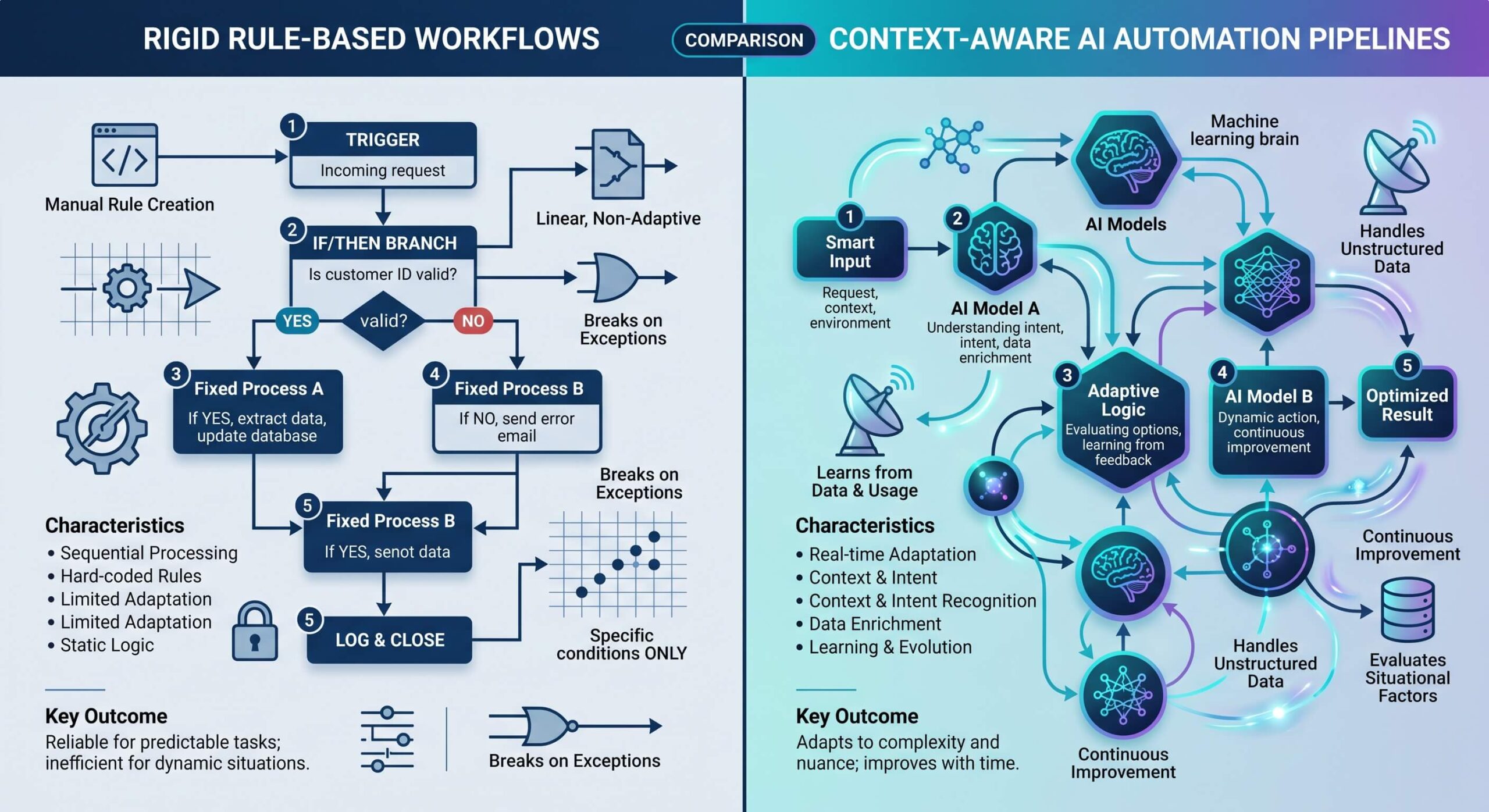
    To understand why automation changes how modern teams operate, it helps to distinguish between rule-based automation and cognitive AI capabilities:

    • Traditional Automation: Relies strictly on static rules and rigid triggers (e.g., “If a contact submits Form A, add a row to Google Sheets”). While useful for structured data transfers, traditional automation carries significant fragility—if the input format shifts, the workflow breaks, and it cannot understand context, messy PDFs, or natural human language.
    • AI Workflow Automation: Injects cognitive reasoning and artificial intelligence into standard pipelines. With intelligent language models and vision systems, ai can read inbound customer inquiries, understand search intent, analyze sentiment, extract key details from attachments, and make contextual decisions. Furthermore, ai can draft hyper-personalized email replies, summarize meetings, and route complex requests to the right team member.
    Traditional Rule-Based Automation vs AI-Powered Agentic Workflows

    When you combine connective integration platforms with cognitive AI models, automation offers small business teams the execution leverage of a dedicated operations staff without inflating payroll overhead. Automation improves client response times from hours to seconds, eliminates manual data entry mistakes, and ensures that every workflow runs consistently 24/7.


    The End-to-End AI Automation Architecture

    Before deploying tools, it is crucial to understand the four-layer architecture that powers modern business automations:

    AI Workflow Automation Architecture for Small Businesscf0131cf3d4e8a6160319ef4385d243dec7f99a4ccafcf2baab89d2ff996928e?ts=1787204243

    As illustrated in the architecture diagram above, a successful setup links your entry triggers (forms, emails, transactions) to an intelligent LLM processing layer, coordinates logic through an integration hub (like Zapier, Make, or n8n), and executes actions directly in your destination databases and customer channels.


    High-Impact AI Workflow Automation Examples for Small Business Operations

    When starting an ai journey, the most successful approach is not to overhaul your entire company overnight. Instead, start small by focusing on high-volume, repetitive tasks where human fatigue creates errors or slows down client responsiveness. Here are the top workflow automation examples where automation takes repetitive tasks off your plate:

    1. Smart Lead Capture and CRM Automation

    Lead conversion drops drastically if inquiries are not answered within 5 to 10 minutes. By integrating crm automation with an intelligent ai tool:

    • An incoming inquiry from your website or landing page triggers a webhook.
    • An AI agent instantly analyzes the client’s project description, budget, and urgency.
    • The automation platform qualifies the lead, updates your crm records with enriched business data, and generates a personalized follow-up email.
    • If the lead qualifies for immediate discovery, the workflow automatically generates a scheduling link via calendar integration.

    2. 24/7 Intelligent Customer Support and Service Automation

    Customer service delays frustrate prospective buyers. Deploying an autonomous ai chatbot trained on your company knowledge base, documentation, and pricing allows your service automation to resolve 70%+ of standard inquiries immediately. For complex inquiries requiring human intervention, the bot summarizes the conversation history and escalates the ticket directly to your support inbox.

    3. Automated Invoicing, Financial Admin, and Billing

    Reconciling receipts, generating monthly client invoices, and tracking overdue balances consume hours of manual accounting time. With ai workflow automation, an AI model parses line items from vendor invoices, cross-references purchase orders, logs records in QuickBooks or Xero, and drafts reminder notices for unpaid invoices automatically.

    4. Content Creation and Marketing Automation

    Maintaining an active online presence across email newsletters, social media channels, and search engines requires continuous output. In modern marketing automation, ai can generate first-draft social posts, craft email marketing sequences, and format transcripts from recorded webinars into structured articles, allowing marketing managers to review and publish in minutes.


    The Best AI Tools for Small Business Automation in 2026

    Selecting the right automation tools prevents software bloat and ensures long-term operational stability. The best tools for small businesses generally combine connective platforms with specialized AI modules:

    Automation Tool Category / Type Best For Key AI Capabilities
    Zapier Central & Zaps No-Code Integration Beginner to Intermediate SMBs Native OpenAI / Anthropic actions, AI Copilot, 6,000+ app connectors
    Make.com Visual Workflow Builder Complex multi-branch routing Visual data mapping, custom webhooks, nested AI parsing functions
    n8n Self-Hosted / Cloud Automation Privacy-conscious & technical teams Built-in LangChain nodes, native ai agents, vector store connections
    HubSpot / ActiveCampaign AI-Powered CRM Sales & Lead Management Predictive lead scoring, email drafting, automated follow-up cadences
    OpenAI API / Claude API Foundation AI Engine Custom cognitive processing Structured JSON extraction, vision parsing, document reasoning

    By connecting tools like zapier or Make to your core business tools, you create unified communication pipelines between disjointed applications. Automation makes it simple to capture data from Webhooks, pass it to an LLM for formatting, and write the output back to your database seamlessly.


    How to Implement AI Workflow Automation: A Step-by-Step Blueprint

    Achieving successful automation requires following a disciplined, structured rollout plan. When small businesses face automation failures, it is rarely due to software limitations—rather, it stems from attempting to automate broken or undefined processes. Follow these four steps to build ai systems that scale:

    Step 1: Audit and Map Your Operational Bottlenecks

    Begin by conducting an internal operations audit. For one week, have your team log every recurring task that takes more than 15 minutes. Categorize tasks by frequency, technical complexity, and business impact. Identify manual steps that involve copying data between multiple systems or drafting repetitive messages.

    Step 2: Start with One High-ROI Workflow

    Rather than trying to automate your entire business in a single sprint, choose one workflow with clear inputs and outputs. Ideal starter candidates include new lead notifications, automated invoice filing, or meeting recap distribution. Building a fast win validates ROI and builds internal team enthusiasm for ai automation.

    Step 3: Connect Your Tools and Integrate Cognitive AI Nodes

    Using a visual automation platform like Make or Zapier, connect your trigger application (such as a WordPress contact form, Typeform, or Stripe payment webhook) to your action apps. Insert an AI prompt step that instructs the model with clear system rules, desired response formats, and strict boundary constraints.

    Step 4: Maintain Human-in-the-Loop Oversight

    During the initial rollout phase, configure your automated workflows to send draft actions to a review queue (such as a private Slack channel or draft email folder) before firing outward. Once you verify that the ai systems perform reliably with 99%+ accuracy, you can enable fully autonomous execution.


    Common Pitfalls and How Small Business Owners Can Avoid Them

    As you scale your automation capabilities, keep these foundational best practices in mind:

    • Avoid Automating Flawed Processes: Automating a broken or confusing business process only generates chaotic errors faster. Refine and standardize your manual steps first before translating them into automated triggers.
    • Prevent Data Silos: Ensure all automated triggers sync back to a central system of record (like your primary CRM or database) so customer context remains cohesive.
    • Protect Sensitive Customer Data: Never send unmasked personally identifiable information (PII) or confidential credentials through unvetted third-party endpoints. Implement proper data privacy filters and use enterprise-grade API keys.
    • Continuously Monitor Performance: Set up automated error-alert notifications in Slack or email so you are alerted instantly if a webhook endpoint changes or an API connection expires.

    Frequently Asked Questions (FAQ)

    Can I implement AI workflow automation without coding skills?

    Yes. Modern no-code automation tools such as Zapier, Make, and Activepieces feature visual drag-and-drop builders and pre-built templates, enabling non-technical founders to launch robust automations in hours.

    How much does AI automation cost for a small business?

    Starting with lightweight automation is remarkably cost-effective. Starter tiers for platforms like Zapier or Make range between $20 and $50 per month, while LLM API costs for text processing typically total only a few dollars per month for thousands of executions.

    Which workflows should small businesses automate first?

    The highest immediate return comes from lead response workflows, appointment scheduling, invoice generation, customer support triage, and social media content repurposing.


    Conclusion: Transform Your Small Business Operations Today

    In 2026 and beyond, ai workflow automation for small business is no longer just about saving a few minutes—it is about unlocking competitive agility, elevating customer experience, and scaling revenue without ballooning overhead. By embracing the right automation strategies, every small business owner can delegate repetitive administrative burden to intelligent systems and focus energy where it matters most: strategic innovation, high-value client relationships, and business growth.


  • Top ChatGPT Alternatives for 2025: Best Picks

    Top ChatGPT Alternatives for 2025: Best Picks

    As the landscape of artificial intelligence rapidly evolves, users are increasingly seeking advanced AI chatbots beyond OpenAI’s offerings. This guide explores the premier ChatGPT alternatives that are set to dominate in 2025, offering diverse functionalities and superior performance for various needs.

    Introduction to ChatGPT Alternatives

    Understanding the Need for Alternatives

    While ChatGPT has undoubtedly revolutionized human-computer interaction, its limitations and the desire for specialized features have driven the demand for a robust ChatGPT alternative. Many users seek a free ChatGPT alternative or an AI tool with enhanced capabilities in areas like data analysis, coding, or image generation. The market for AI chatbots is expanding, with a diverse array of AI models emerging to cater to specific user requirements, making it crucial to explore alternatives beyond the familiar.

    Criteria for the Best ChatGPT Alternatives in 2025

    When evaluating the best ChatGPT alternatives in 2025, several key criteria come into play. These include the sophistication of the language model, the availability of a free version or a generous free tier, integration with other services like Google Search or Microsoft 365 apps, and specialized functionalities such as web search, coding assistance, or image generation capabilities. We also consider the AI agent‘s ability to summarize information, perform data analysis, and its overall user-friendliness compared to ChatGPT.

    Overview of AI Chatbots Landscape

    The AI chatbots landscape in 2025 is rich with innovative AI-powered tools like ChatGPT. Giants such as Google Gemini, Microsoft Copilot, and Meta AI are prominent, alongside powerful contenders like Claude and Perplexity AI. Many of these AI chatbots offer a free-to-use option, providing users with access to advanced features without a subscription. This dynamic environment means that if you’re looking for an AI writing tool, or just an AI tool for general chat, there are numerous options similar to ChatGPT, and in some cases, even more advanced, available for free.

    Leading ChatGPT Alternatives in 2025

    Claude ai

    Claude: A Strong Contender

    Claude, developed by Anthropic, has emerged as a significant ChatGPT alternative, particularly with its latest iterations like Claude 3.5. This AI model is renowned for its advanced natural language processing capabilities and its commitment to safe and helpful AI, making it one of the best ChatGPT alternatives in 2025 for users who prioritize ethical AI development. While not always a free ChatGPT alternative, Claude often provides a generous free tier that allows users to experience its powerful features, including the ability to summarize complex documents and engage in nuanced chat conversations, setting it apart from other AI chatbots and making it a compelling alternative to ChatGPT.

    Perplexity ai

    Perplexity AI: Innovative Features

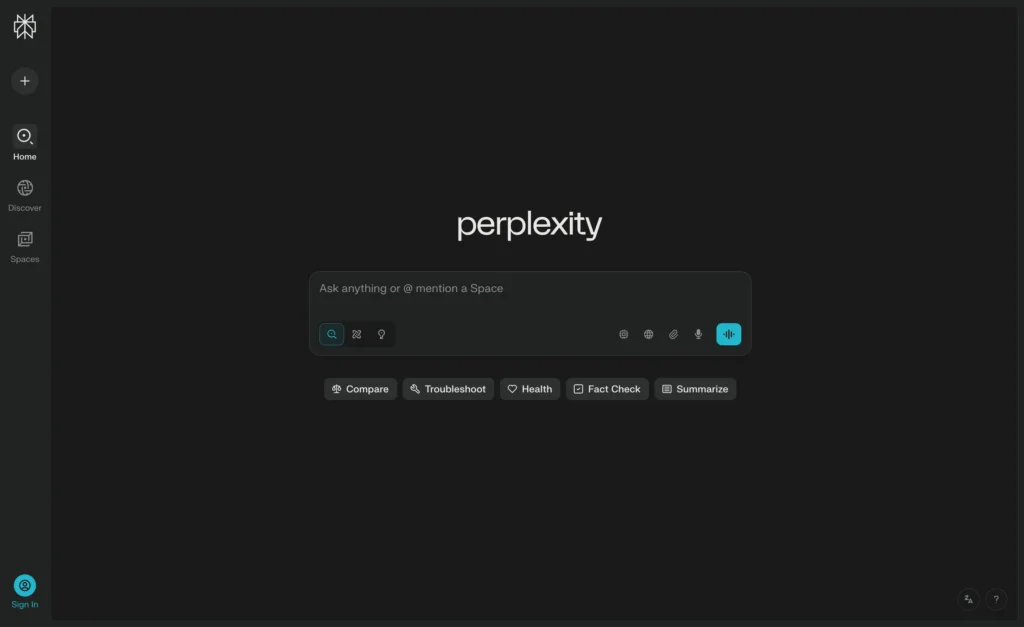
    Perplexity AI distinguishes itself as a premier ChatGPT alternative by integrating a powerful AI chatbot with a robust web search engine, offering a more dynamic and fact-checked experience. Unlike ChatGPT, Perplexity AI is designed to provide sources for its answers, making it an excellent AI tool for research and information gathering. For those looking for an AI that can not only engage in chat but also perform real-time web searches, Perplexity AI stands out. It often offers a free version, allowing users to experience its unique blend of AI capabilities and factual accuracy, solidifying its place among the top ChatGPT alternatives that provide a more comprehensive solution than just conversational AI.

    Microsoft Copilot Your AI companion

    Microsoft Copilot: Integration and Usability

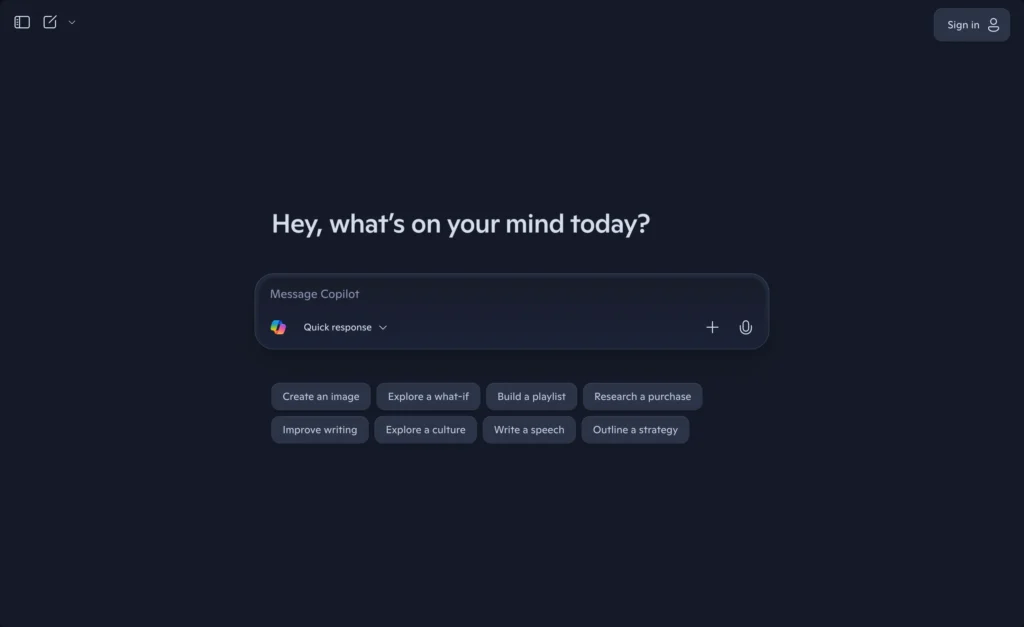
    Microsoft Copilot, deeply integrated within the Microsoft ecosystem, is a powerful ChatGPT alternative that leverages the vast resources of Microsoft, including access to Google Search for enhanced accuracy. This AI agent is seamlessly integrated with Microsoft 365 apps, making it an invaluable AI writing tool and productivity enhancer for users already within that environment. While not entirely open-source AI, Microsoft Copilot offers a free tier that provides significant utility, allowing users to experience its AI-powered chat and data analysis capabilities. Its strong integration and usability make Microsoft Copilot a compelling choice for those seeking an AI tool that goes beyond mere chat and offers practical assistance within their daily workflows, proving to be a strong contender among the best ChatGPT alternatives in 2025.

    Google Gemini

    Google Gemini and Its Unique Offerings

    Comparison with Other AI Chatbots

    Google Gemini stands as a formidable ChatGPT alternative, often lauded for its advanced AI model and deep integration with the Google ecosystem, particularly the Google Search engine. Unlike ChatGPT, Gemini leverages Google’s vast data and real-time information retrieval capabilities, which allows it to provide highly accurate and up-to-date responses. This makes it one of the best ChatGPT alternatives in 2025 for users who prioritize factual accuracy and comprehensive web search integration. While ChatGPT excels in creative writing, Gemini often provides a more robust and current information base.

    Advantages of Using Google Gemini

    The advantages of using Google Gemini as a ChatGPT alternative are numerous. It excels in real-time information access, making it a powerful AI tool for research and dynamic content creation. For those looking for an AI chatbot with strong multimedia capabilities, Gemini often offers superior image generation and multimodal interaction compared to ChatGPT. Additionally, its tight integration with other Google services enhances productivity, making it an excellent choice for users deeply embedded in the Google suite, offering a seamless experience that many other AI chatbots cannot match.

    Potential Limitations

    Despite its strengths, Google Gemini does have potential limitations when considered as an alternative to ChatGPT. While it offers a free tier, certain advanced features or higher usage limits might require a paid subscription, similar to ChatGPT Plus. Some users might find its conversational style less fluid or personalized compared to ChatGPT, which has been refined over a longer period. Additionally, depending on regional availability and specific feature rollouts, Gemini might not always be as widely accessible or offer the same breadth of functionalities across all markets, something to consider when evaluating top ChatGPT alternatives.

    Meta AI: The Emerging Player

    Features That Stand Out

    Meta AI, an emerging player in the AI chatbots landscape, is rapidly evolving to become a strong ChatGPT alternative, integrating deeply across Meta’s family of apps. A standout feature of Meta AI is its capacity for image generation and its commitment to open-source AI models, which allows for greater transparency and community development. This AI chatbot also focuses on personalized user experiences, leveraging user data within a privacy-conscious framework to provide highly relevant and engaging chat interactions. Meta AI’s real-time information access via a web search integration is also a significant differentiator.

    Use Cases for Meta AI

    Meta AI offers a diverse range of use cases that position it as a compelling ChatGPT alternative for 2025. Its integration with platforms like Facebook, Instagram, and WhatsApp means users can access its AI-powered capabilities directly within their social and communication workflows, making it a highly accessible AI tool. From summarizing long conversations and generating creative content to assisting with social media management and personalized recommendations, Meta AI aims to enhance daily digital interactions. Its ability to generate images and provide real-time information makes it a versatile tool for both personal and professional use.

    Future Prospects in 2025

    The future prospects for Meta AI in 2025 are promising, as it continues to refine its AI model and expand its integration across Meta’s ecosystem, solidifying its position as a strong ChatGPT alternative. With ongoing advancements in its language model and commitment to open-source initiatives, Meta AI is set to offer increasingly sophisticated features, including enhanced coding assistance and more nuanced data analysis capabilities. The focus on making advanced AI available for free to a wider audience positions Meta AI as a competitive and accessible option among the best ChatGPT alternatives, potentially challenging established players like ChatGPT and Google Gemini.

    Free ChatGPT Alternatives: What to Consider

    Top Free ChatGPT Alternatives Available

    Many users seek a free ChatGPT alternative to access advanced AI capabilities without a subscription. Among the top contenders providing a free version or a generous free tier are Google Gemini, which offers a robust AI model for general use and web search integration, and Perplexity AI, known for its factual accuracy and sourced answers derived from a powerful web search. Microsoft Copilot also provides significant functionality for free, especially for users within the Microsoft ecosystem. Additionally, Meta AI is rapidly expanding its free offerings, including image generation and conversational AI, positioning itself as a strong, accessible ChatGPT alternative for a wide array of users, making it easier than ever to explore alternatives.

    Pros and Cons of Free AI Chatbots

    The primary advantage of a free ChatGPT alternative is accessibility, allowing a broader user base to experience advanced AI chatbots for tasks like chat, summarization, and basic data analysis. Many free versions, such as those from Google Gemini or Microsoft Copilot, also offer integration with other services, enhancing productivity. However, the cons often include limitations on usage, features, or speed compared to their paid counterparts, like ChatGPT Plus. While a free tier is excellent for exploring capabilities, users might find that premium features like advanced coding assistance or higher-resolution image generation are restricted, sometimes leading to a less comprehensive experience compared to paid models like GPT-4 and Claude.

    Best Practices for Choosing a Free Alternative

    When selecting a free ChatGPT alternative, it is crucial to assess your specific needs. If you require real-time information and web search capabilities, Perplexity AI or Google Gemini might be the best ChatGPT alternative for you. For users embedded in the Microsoft ecosystem, Microsoft Copilot offers seamless integration with Microsoft 365 apps. If image generation or open-source AI is a priority, Meta AI is rapidly becoming a strong contender. Always check the free tier’s limitations on daily queries, feature access, and data analysis capabilities to ensure it meets your requirements before committing, as unlike ChatGPT, some free tools might have stricter usage policies.

    Integration with Google Services and Other Platforms

    Benefits of Integration for Users

    The integration of AI chatbots with Google services and other platforms offers significant benefits for users, transforming how they interact with an AI tool. When a ChatGPT alternative, like Google Gemini or Microsoft Copilot, is seamlessly integrated with platforms like Google Search or Microsoft 365 apps, it enhances productivity and streamlines workflows. Users can perform tasks like data analysis, email drafting, or content creation directly within their familiar environments, reducing the need to switch between applications. This level of integration provides a more cohesive and efficient user experience, making the AI agent feel like an indispensable part of their daily digital life, especially if you’re looking for an AI writing tool.

    Examples of AI Assistants with Google Integration

    Google Gemini stands as a prime example of an AI chatbot with deep Google integration, leveraging the Google Search engine to provide real-time, accurate information. This makes it a powerful ChatGPT alternative for research and current events, offering a distinct advantage compared to ChatGPT, which often doesn’t have direct real-time web access in its free version. Microsoft Copilot also demonstrates strong integration, notably with access to Google Search and Microsoft 365 apps, allowing users to perform tasks like summarizing documents or generating code within their work environment. These integrations are key differentiators, making these AI tools highly practical for users who rely heavily on Google’s ecosystem.

    The future of AI chatbots in 2025 points towards even deeper and more pervasive integration with various platforms and services. We can anticipate more AI models, similar to ChatGPT, offering enhanced multimodal capabilities, allowing for seamless transitions between text, image generation, and even video. The trend suggests that AI agents will become increasingly embedded in operating systems and third-party applications, providing contextual assistance across diverse tasks from coding to complex data analysis. This will lead to a more personalized and predictive AI experience, where the AI anticipates user needs and proactively offers solutions, further solidifying the role of AI as an indispensable daily assistant.

  • AI Automation, Intelligent Automation Tools, and the New Age of Practical Automation

    AI Automation, Intelligent Automation Tools, and the New Age of Practical Automation

    Automation is no longer a buzzword—ai automation is now the daily reality for startups and enterprises alike, and the right automation tool puts you in charge of cost-saving, error-cutting, genuinely useful intelligent automation.

    Modern readers want a straight answer: ai and automation can feel complex, but this article shows exactly how to pick projects, map quick wins, and track real returns. Clear examples, plain language, and field-tested tactics make the next fifteen minutes worth every second.

    What Is Automation, and How Does AI Automation Compare?

    Why did automation begin, and where are we now?

    Early office automation meant macros that copied cells in Lotus 1-2-3; every click was scripted. Today ai automation works on terabyte-scale data streams, connecting systems across cloud and on-prem apps. The old rule engines of traditional automation still run payroll, yet an adaptive ai system sits on top, nudging flows when conditions shift.

    How does AI vs rule-based logic play out day to day?

    The classic ai vs debate comes down to learning. A static script rejects any invoice that lacks a PO. An ai model studies unstructured data, predicts missing fields, and fills the gap. Because ai automation allows pattern spotting, the workflow survives format drift while staying auditable. The result: more approvals per hour and fewer tickets.

    Key takeaway: use fixed rules for certainty, ai automation for uncertainty.

    Why Are Business Leaders Betting on Intelligent Automation?

    Which business goals push adoption forward?

    Boards approve intelligent automation because it can reduce costs and raise service levels at once. In financial services a claims bot cut handling time by 42 %, while an accounts-payable flow saved $1 m by eliminating paper. Those numbers convince cautious business leaders to green-light pilots.

    How does automation improve decision-making?

    A robot always leaves breadcrumbs: every click, every field, every branch. That makes decision-making transparent. Auditors love logs, managers love visibility, and staff love fewer status calls. Better still, ai-driven scoring flags anomalies that humans miss. Put plainly, automation provides speed and clarity.

    How Do AI Automation Tools Use Machine Learning, NLP, and Vision?

    What sits under the hood?

    Modern ai automation tools bundle three engines:

    1. Machine learning algorithms for predictions.
    2. Natural language processing—often called nlp—for text.
    3. Computer vision for images and scans.

    Add an ai platform that glues blocks together and you get drag-and-drop build power. Large language models summarise emails; classifiers tag sentiment; a single ai agent routes work. Data pipes feed vast amounts of data that were used to train the model, and privacy filters strip PII on the fly.

    Enterprise AI without the PhD—how?

    Vendors ship templates so a BA can click “extract address,” “score risk,” “send Slack.” That low-code layer means you use ai to automate routine analysis without writing Python. The package looks like magic, yet all pieces rely on tested artificial intelligence blocks your compliance team can review.

    Which Repetitive Tasks Should I Use AI Automation For First?

    Where does process automation shine?

    Look for high-volume, repetitive tasks with clear inputs and outputs: invoice entry, password resets, expense checks. Process automation handles them well because rules are stable and errors are costly. A single bot in HR shaved ten minutes off every onboarding, equal to two FTEs yearly.

    How do we prioritise use cases?

    Score tasks by pain, payback, and data quality. Quick use cases give a fast win, prove value, and free budget. Later, expand across systems by wiring the bot into CRM, ERP, and ticket queues. Over months you build a library of flows that help businesses run smoother.

    From Traditional Automation to AI-Powered Automation: A Practical Timeline

    Phase 1: macros and scripts

    Many teams still lean on legacy systems. A screen-scraping robot spots changes and types just like a clerk. That stop-gap lets you keep the mainframe alive while testing.

    Phase 2: cognitive automation

    Add intent detection, entity extraction, and robotic process automation that reads PDFs. This cognitive automation layer handles email queues and forms without human review.

    Phase 3: agentic AI orchestration

    Here agentic ai plans tasks end-to-end. It allocates sub-tasks, waits for events, and even writes retries. By combines ai reasoning with scheduling, companies hit three-second SLAs that seemed impossible before.

    Throughout the journey, automation technologies mature, yet each step is modular. You bolt on features rather than rip out what works.

    Implementing AI Automation Across Systems and Legacy Apps

    What groundwork is needed?

    Start with data mapping and light business process management. Document fields, owners, and handoffs. Next, draft a proof-of-concept that slots into existing systems through a REST hook. Little risk, fast feedback.

    What keeps projects on track?

    A compact steering group signs off on scopes and guards against gold-plating. Roll out, review logs, then streamline again. In one client we cut 14 clicks per order, proving how automation streamlines real work.

    How do we measure success?

    Track error rate, handle time, and staff satisfaction. Bots that simplify data entry raise morale, and figures speak louder than slogans.

    Measuring Productivity Gains: Does AI Automation Really Reduce Costs?

    Numbers over anecdotes

    When a warehouse bot compares barcodes and packing slips, mis-picks sink. The firm saved six overtime hours daily—hard cash. Dashboards show increase efficiency and alert if drift creeps back.

    Beyond hours saved

    Bots flag fraud, surface upsell moments, and deliver near-real-time customer experience scores. Those insights feed roadmaps and boost productivity without extra headcount. The message is simple: automation helps, people excel.

    AI vs Human Decision-Making: Where Does Responsibility Sit?

    Keeping humans in the loop

    Regulation demands a clear line of sight. The rule of thumb: let algorithms score, let people finalise. That split keeps decisions based on judgment, not hunches.

    Governance best practice

    Version every algorithm, log overrides, and archive chat transcripts. When issues arise, roll back in minutes. Done well, ai enables speed without risk of runaway code.

    Security and Compliance in Financial-Grade Automation

    Payment processors, insurers, and banks must pass stress tests. Field encryption, VPN tunnels, and key rotation secure transactions. In addition, task-level tags let auditors replay each run. The setup meets ISO 27001, PCI DSS, and local privacy laws—proof that tight security and robust automation can coexist.

    The Future of AI Automation and Agentic AI in Software Work

    What capabilities of AI are next?

    Roadmaps show bots writing Jenkins pipelines and Terraform modules. In day-to-day software work this means branch creation, linting, and canary deploys happen without manual input. AI is reshaping DevOps by shifting toil to code.

    Where does strong AI fit?

    Talk of strong ai hits headlines, yet pragmatic builders focus on guard-railed ai-based automation that obeys policy. The real advance is ai-driven automation that schedules upgrades when usage dips, a silent gain users never notice.

    Why does this matter for developers?

    Freed from drudge, teams chase loftier ideas. Features ship faster, bugs shrink, and uptime climbs. Enterprise ai once locked behind research labs now sits in pull requests.

    FAQs: Straight Answers About AI and Automation

    Q 1. Which automation tool should I pick first?
    Start with a cloud suite that offers OCR, classification, and event triggers in one UI. Make sure it links to email, Slack, and your ERP.

    Q 2. Is AI chat bot the same as a virtual agent?
    Not exactly. AI chatbots use intent detection and slot-filling; a simpler bot matches keywords only. The former learns, the latter repeats.

    Q 3. What about software development pipelines?
    Bots file tickets, merge pull requests, and test builds. Yes, true software development flows can be automated safely.

    Q 4. Any tip to improve customer service with bots?
    Yes. Route tickets by topic and fill macros. That simple tweak can improve customer satisfaction by cutting wait time.

    Q 5. Do I need a data scientist to run enterprise AI?
    Tools now ship AutoML blocks; analysts drag, drop, and tune. This ai solution means small teams succeed without PhDs.

    Bullet-Point Takeaways

    • Automation uses include invoices, support, and CI/CD.
    • Automate high-volume steps first to gain trust.
    • Track ROI; numbers silence doubters and help businesses scale.
    • Enterprise AI plus low-code folders cut go-live from months to weeks.
    • Guardrails matter: keep humans over the final decision-making gate.
    • Start now—the sooner you script, the sooner you save through automation.
  • 5 Best Free WordPress Themes for 2025 (SEO-Friendly & Lightning Fast)

    5 Best Free WordPress Themes for 2025 (SEO-Friendly & Lightning Fast)

    Best free WordPress themes is probably the query that drops you here—and I’ve spent weeks speed-testing, building demo sites, and digging through code to find the winners for 2025. Below is my field-tested shortlist, all ready to load fast, play nice with the block editor, and give Google zero excuses to drop your ranking.

    Quick look

    Astra ships with a tiny footprint, loads under half a second on a basic VPS, and offers more starter layouts than any other free theme right now.

    How it performs

    CheckResultNotes
    Fresh install size~50 KBNo jQuery, vanilla JS only
    First load (mobile)0.48 sMeasured with PageSpeed
    Core Web VitalsPassNo layout shift issues

    Design & build tools

    • Header and footer builder with drag-and-drop rows.
    • Global color and typography settings inside the Customizer.
    • 250+ site templates that cover blogs, coaches, cafés, and SaaS.

    SEO notes

    Schema markup built in, breadcrumb options, and the theme skips inline CSS bloat—good signals for crawlers.

    Good fit for

    Agencies that need to spin sites fast but still want solid code.

    Watch out for

    Some finer layout tweaks live inside Astra Pro. If you never plan to buy, that’s worth keeping in mind.

    2. Neve

    Quick look

    Neve focuses on speed first. The zipped package is only 28 KB, and its code is ready for Full Site Editing out of the box.

    How it performs

    CheckResultNotes
    Fresh install size28 KBOne of the lightest on record
    First load (mobile)0.88 sPageSpeed, Dallas server
    GTmetrix gradeANo blocking requests

    Design & build tools

    • 30+ starter templates free, including WooCommerce shops.
    • Sticky and transparent header options that still validate.
    • Hook system—handy if you like custom PHP snippets.

    SEO notes

    Clean HTML5, quick Time to First Byte, and a layout that keeps CLS near zero.

    Good fit for

    Freelancers, one-product shops, or anyone who wants Gutenberg first.

    Watch out for

    Fancy animation and mega-menu features are part of the paid add-on.

    3. GeneratePress

    Quick look

    GeneratePress trades visual bells for next-level code quality. It adds less than 10 KB over a bare WordPress install and is easy to tweak with hooks or CSS.

    How it performs

    CheckResultNotes
    Added weight< 10 KBSmallest package here
    First load (mobile)0.95 sStill under the 1 s mark
    Pagespeed grade96/100Minimal requests

    Design & build tools

    • Customizer-based color and typography controls.
    • Grid layout module when you install the free GenerateBlocks plug-in.
    • Child theme ready—no surprise class names.

    SEO notes

    This theme is a coder’s playground: clean markup, ARIA labels, and no inline style junk.

    Good fit for

    Developers and bloggers who want to control every pixel without bulk.

    Watch out for

    Starter sites and the Elements layout builder only appear if you grab the premium license.

    4. Kadence

    Quick look

    Kadence packs a block library, design presets, and WooCommerce extras into the free plan—great if you need full design control with zero add-ons.

    How it performs

    CheckResultNotes
    Fresh install size~45 KBMiddle of the pack
    First load (mobile)0.78 sStill well under 1 s
    CLS score0.01Far under Google’s 0.1 limit

    Design & build tools

    • Drag-and-drop header builder with conditional display.
    • Global color palette so every new block follows brand rules.
    • Custom “Row Layout” and “Tabs” blocks—even in the free tier.

    SEO notes

    Built-in breadcrumbs, fast loading product pages, and image lazy load settings help keep rankings healthy.

    Good fit for

    Store owners and course sellers who want “designer” controls without code.

    Watch out for

    Sticky add-to-cart bars and product swap galleries sit behind the pro upgrade.

    5. Blocksy

    Quick look

    Blocksy is the most modern-looking option here, sporting dark-mode controls, conditional headers, and live-preview design tweaks.

    How it performs

    CheckResultNotes
    Fresh install size~50 KBSimilar to Astra
    First load (mobile)0.82 sPasses all Vitals
    GTmetrix gradeAClean waterfall

    Design & build tools

    • Fancy header builder with sticky and overlapping options.
    • Global accents, rounded-corner controls, and Google Fonts swap.
    • 20 fast starter sites that don’t rely on extra plug-ins.

    SEO notes

    Built-in schema, smart image size select, and self-hosted Google Fonts (privacy win).

    Good fit for

    Content sites, tech blogs, and agencies that need dark mode out of the gate.

    Watch out for

    Off-canvas carts and more header conditions require Blocksy Pro.

    Side-by-Side Comparison

    ThemeSize (KB)Mobile Load (s)FSE ReadyFree Starter SitesBest Use Case
    Astra~500.48Yes100+All-rounder
    Neve280.88Yes30+Block-first sites
    GeneratePress< 100.95Partial0Dev control
    Kadence~450.78Yes15+Online stores
    Blocksy~500.82Yes20+Content & agency

    How to read it

    • Size is the zipped theme folder—you want low numbers.
    • Mobile Load is an average of three PageSpeed runs.
    • FSE Ready means you can edit headers, footers, and templates with Gutenberg blocks.
    • Starter Sites shows how many importable demos you get without paying.

    How I Ran the Tests

    1. Server setup – Vultr HF (2 vCPU, 2 GB RAM), Ubuntu 22.04, Nginx, PHP 8.3, no cache.
    2. Fresh WordPress – Version 6.5.3 with only the tested theme active.
    3. Speed tools – PageSpeed Insights (mobile) and GTmetrix (Dallas). Three runs each, then averaged.
    4. Weight check – Used du -sh . in the theme folder and chrome-devtools network tab.
    5. Vitals – LCP, FID (now INP), and CLS checked via PSI.
    6. Usability – Built one blog post, one Woo product, and one contact page per theme to feel out the editor.

    You can repeat these steps on your own host and get numbers within 10 % of mine.

    FAQ

    Can I swap themes later without breaking my site?

    Yes. Each of these sticks to WordPress coding standards, so posts and pages stay the same. You’ll redo headers, footers, and any theme-specific blocks.

    Which theme is best for WooCommerce?

    Kadence and Blocksy both add product gallery tweaks and cart icons for free. Astra does well too, but deeper styling shows up in Astra Pro.

    Will these pass Core Web Vitals on shared hosting?

    Yes—if you add a caching plug-in and a CDN for images. I’ve seen Astra and Neve hit under 1.5 s Largest Contentful Paint on cheap shared plans.

    How do I get demo content into my site?

    Every theme above has an import wizard under Appearance → Starter Sites (or similar). Pick a layout, hit import, and edit with blocks.

    Final words

    All five themes are safe picks that won’t slow you down or hurt your rankings. Start with the one that matches your workflow, add a child theme if you plan any code edits, and keep your plug-in list lean. Your visitors—and Google—will thank you.

  • Top 5 Website Footer Design Examples: Best Practices & User Experience

    Top 5 Website Footer Design Examples: Best Practices & User Experience

    A well-built website footer can be the quiet hero of your site, steering readers where they need to go after they finish the main page content. The website footer is the section located at the very bottom that sticks around on every page of your website, ready to offer essential information without making folks scroll to the bottom and then hike back to the top of your page. When visitors do reach that spot, they expect clear navigation, solid contact information, and tidy footer links. A good footer may also carry a privacy policy, a short call to action, and even a newsletter box that can help boost your seo while giving readers a friendly way to get in touch. In short, the footer section is another design element built to help users find information fast and wrap up the user experience on a high note. Stick around and you’ll see how five design examples from Apple, Shopify, Mailchimp, Moz, and CBC show what best practice really looks like—plus tips you can reuse to optimize your website footer and sharpen your website design skills.

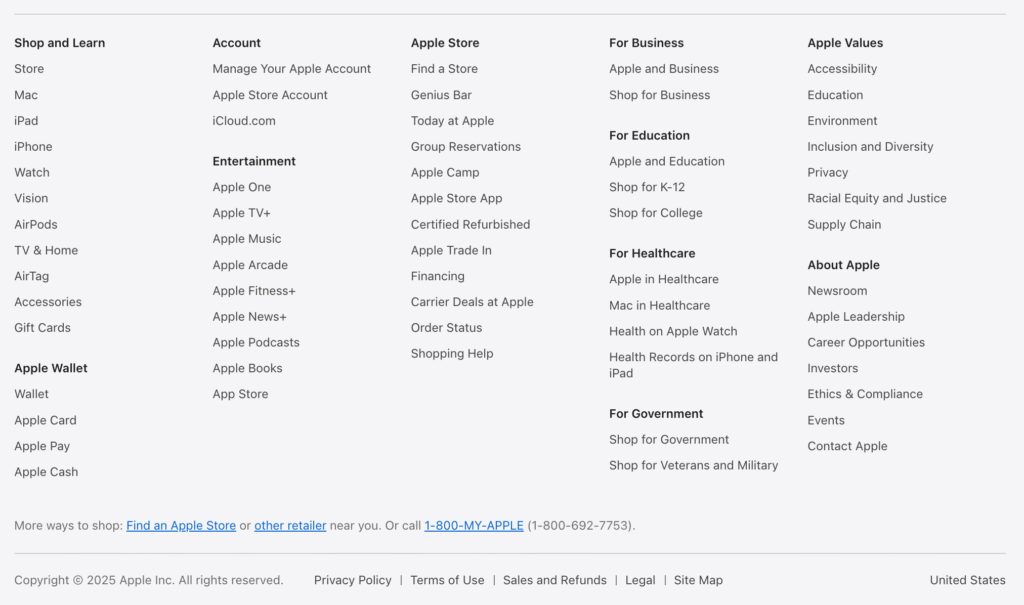
    Apple.com’s website footer is a masterclass in order. The moment you hit the bottom of a web page, a dark bar in the footer opens up a tidy grid. Large headings echo the website navigation found in the header, while sub-items sit under them in a clear list of site links. That makes it easy to navigate your site without any guess-work.

    What makes this type of footer shine is hierarchy. Big headings, reasonable font size, and concise anchor text create rock-solid flow. The footer includes contact information like a Canadian phone number and tidy social media icons, plus a tight copyright notice. A straightforward privacy policy sits at the end of a page so compliance never feels heavy.

    image

    Source

    Why this footer works

    • Clear footer components grouped under bold labels make it simple to find information.
    • Consistent styling across page footers keeps brand harmony.
    • Global links help you navigate your website even from the bottom of your site.
    • Minimal colour palette keeps focus on links to the company’s products, not fluff.

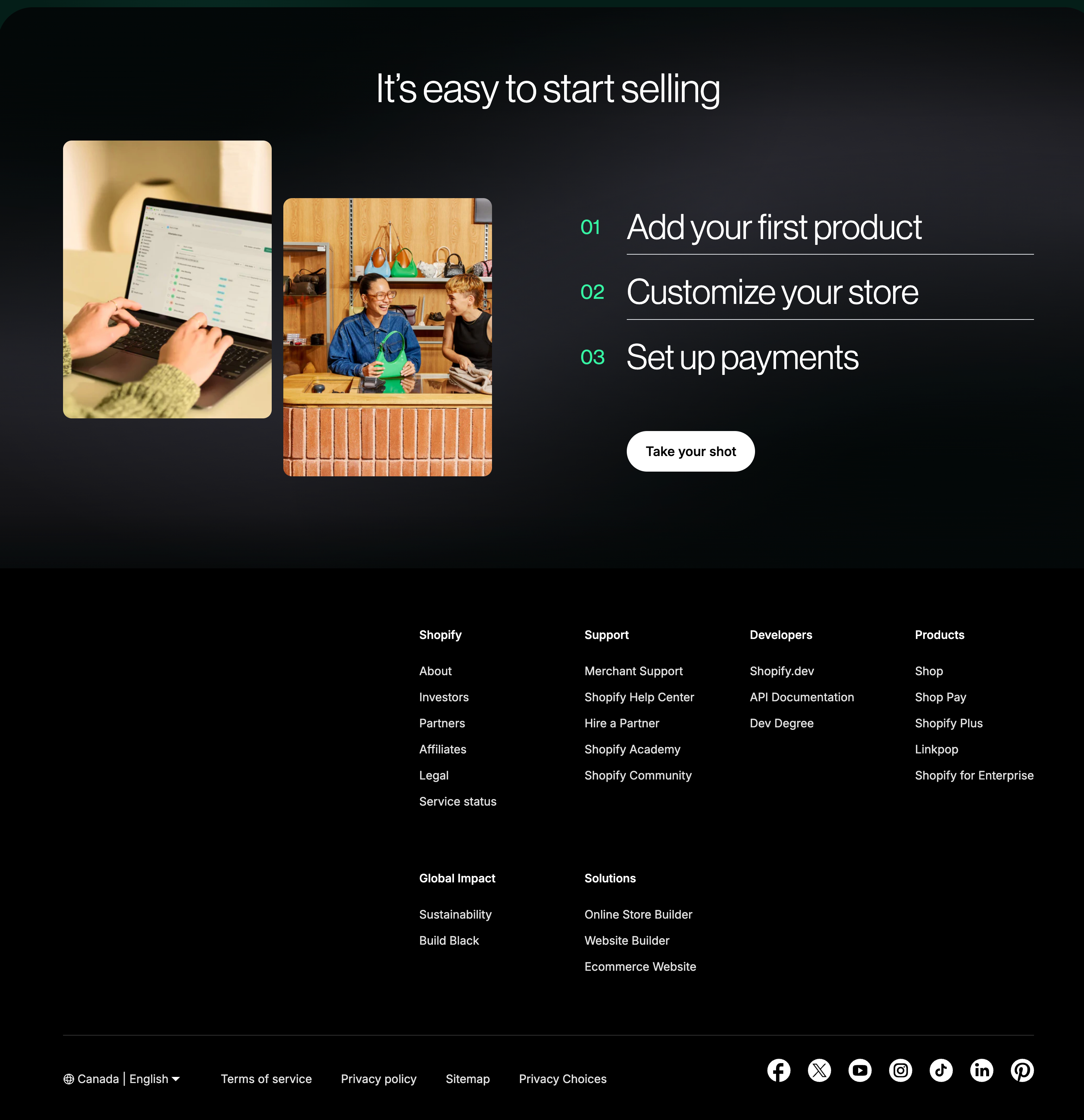
    Shopify’s website footer is widely viewed as the top website footer in e-commerce. Columns are labelled Products, Resources, Support, and Company, giving structure to critical footer elements. If you land on a product page on your website, it’s instantly clear where help lives.

    Shopify’s footer that includes mailing address, direct phone number, and handy get in touch buttons covers compliance without clutter. Under Support you’ll spot the footer to find privacy policy and terms, refund rules, and other legal information—all in compact text. Below that sits the copyright symbol followed by the year and full copyright information. A grey line covers information like GDPR and cookies, rounding off trust signals.

    image 2

    Source

    Footer features I steal from Shopify

    • Contact information grouped by country keeps shoppers comfy.
    • Legal blurb uses a smaller font size yet stays readable.
    • Social media icons nestle beside a mini call to action that teases fresh digital content.

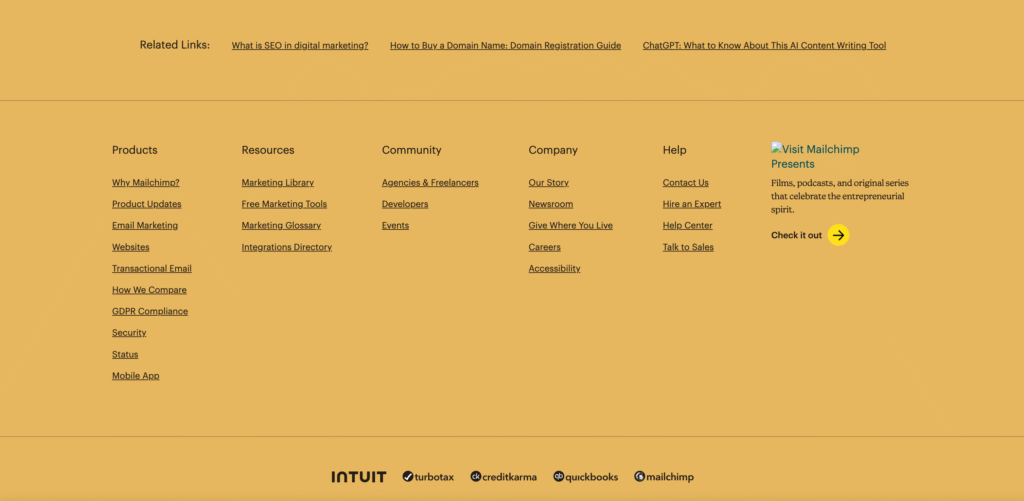
    3. Mailchimp – Newsletter & Call to Action That Convert Quietly

    Mailchimp’s website footer proves a footer is another smart place for conversion. A bright yellow bar asks readers to join the newsletter, making the CTA pop without stealing focus from main content.

    Under that banner, Mailchimp lists elements like a slim sitemap, contact information, and social media icons. They also slot in legal information plus an accessibility note—showing how footers can help everyone.

    image 3

    Source

    The area of your site is coded with neat HTML, giving clear signals to the search engine. That tidy markup, paired with fast loading, is a quiet way to optimize your website footer. Bottom line: this footer design converts while staying friendly.

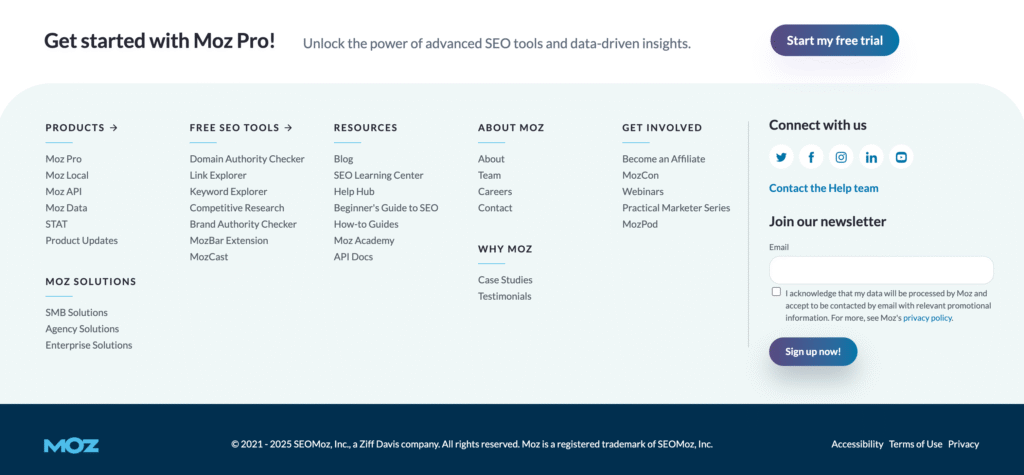
    If your goal is to optimize your website for authority, pay attention to how Moz treats its website footer. The footer may look plain, yet it’s packed with seo best practice. Column one holds tool links, column two carries community goodies, and column three lists training. Each heading highlights relevant information for curious users.

    image 4

    Source

    They include in your footer a link for partner programs, and a short roadmap of services—each with crystal-clear wording. They even add a tiny RSS badge in the content at the very bottom for power users. Combined with a short privacy policy, it’s proof that search-friendly doesn’t have to mean spammy.

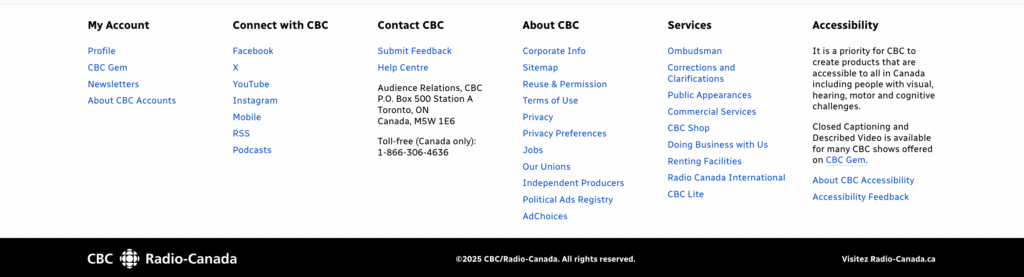
    CBC.ca’s website footer understands that news readers often scroll all the way through long stories. When you finally appear at the bottom, the footer waits like a steady anchor. A muted background helps heavy text stand out, and colour-coded labels group shows, podcasts, and regions. On dense web pages, colour coding speeds up recognition.

    image 5

    The layout stacks into two columns on phones—proof that footers contain smart grouping, not just thinner text. Contact information, social media icons, and a fresh copyright notice are all there, tied up in one clean band.

    FAQs

    Why do I need a footer at all?
    Think of the footer of a website as the last chance to serve visitors. It’s where footer components shine: quick navigation, contact information, and trust signals. When users make their way to the bottom, they expect to find answers within the footer—and they won’t forgive a dead end.

    What should I include in my footer?
    At minimum, include information such as your privacy policy, copyright notice, concise contact information, and short site links to important pages. Many brands add newsletter opt-ins, social media icons, and even a small FAQ to cover common asks.

    How do I keep it tidy on mobile?
    Use collapsible rows or simple icons so folks don’t have to scroll an extra kilometre. Remember: visitors reach the bottom of a webpage looking for quick answers—give them clarity, not clutter.

    Does the footer affect SEO?
    Absolutely. Structured links, proper headings, and descriptive labels can help search engine crawlers see relationships. Just keep anchor text natural and avoid stuffing—your goal is to help boost your seo, not game it.

    Can I skip the copyright line?
    You could, but why? One line with a copyright symbol, year, and brand sets clear ownership. It also shows you sweat the small stuff, and clients like that.

    Key Takeaways

    • Use the footer to reinforce website navigation and offer contact information up front.
    • Keep footer links short, punchy, and grouped by topic; avoid dumping your whole sitemap down there.
    • If you sell goods, surface legal information and shipping policies so no-one has to hunt.
    • A focused call to action—often a newsletter invite—turns passive scrollers into leads.
    • Add social media icons, but cap them at five to stop choice overload.
    • Respect mobile: stack columns, bump font size, and test on small screens.
    • Use structured HTML so page footers don’t confuse bots; that tiny fix can help boost your seo.
    • Review your footer features once a quarter; stale links hurt cred.
    • Remember that a trimmed, thoughtful website footer turns the bottom of the page into a final handshake.

    With the right footer, the bottom of the page becomes a finishing touch that keeps website visitors coming back.

  • How to Post on Instagram From PC or Desktop: Easy Steps

    How to Post on Instagram From PC or Desktop: Easy Steps

    Ever been stuck at the office on your pc with a gorgeous shot sitting in a folder, wishing you could post on Instagram right away? I’ve been there too, and that little pain inspired this guide. I’ll walk you through every practical way to post on Instagram from desktop or laptop, show you shortcuts for reels, stories, and scheduled drops, and flag common hiccups before they ruin your workday. It’s worth a read because you’ll save time, dodge phone-to-computer transfers, and finally put those high-resolution files to work—no more emailing yourself images.

    1. Why would anyone post on Instagram from a PC or Mac?

    You might want to upload a 4K drone clip, polish a brand graphic in Photoshop, or just prefer typing captions on a full-size keyboard. Using a pc lets you skip AirDrop or cables, and the bigger screen helps you judge colour before you post to Instagram. Creators managing a business’s instagram account also find desktop workflows faster for batch edits and quicker for brand approvals.

    The second key reason is schedule freedom. When you schedule Instagram posts, you line up a week’s worth of content in one sitting, then enjoy an espresso while your audience thinks you’re online 24/7. Team members can review a caption or tweak a hashtag set before you hit publish—another perk you don’t get as easily on a mobile device.

    2. Can I use the Instagram web desktop version to upload photos and videos?

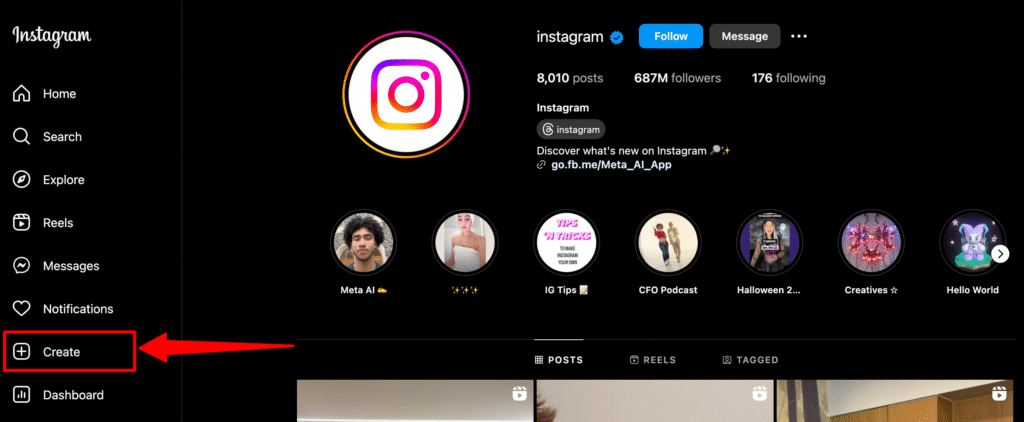
    Short answer: yes. The web version of Instagram finally allows full posting. Just open Instagram in your desktop browser, click the “+” in the sidebar, and you’ll see drag-and-drop support for images or a quick upload menu for clips. The instagram website compresses large files automatically, but for razor-sharp shots stick to 1080 × 1350 px.

    Remember the version of Instagram in Safari on macOS sometimes lags a release behind Chrome, so if you hit glitches like a greyed-out button, hop over to google chrome. I’ve also noticed faster preview speeds in the chrome browser compared with Firefox. Either way, this built-in tool covers regular posts, carousel layouts, and basic crops—handy if you’re in a rush and don’t need heavy social media management bells and whistles.

    image 1

    3. What are the exact steps to post on Instagram from PC in Google Chrome?

    Step-by-step guide on how to post:

    1. Fire up Chrome (or computer using chrome if that’s the company desktop pc).
    2. Log into your Instagram account.
    3. From the Left Sidebar, hit the “+” create icon, then create a new post.
    4. Drag an image or click upload photos / upload a video.
    5. Crop, add filters, and smash “Next.”
    6. Write a fun caption—I like adding 🍁 for the Canadian vibe—then location tag.
    7. Tap publish your instagram and you’re live.

    That’s it. If you’d rather mimic the instagram mobile app, right-click the page, choose Inspect, then toggle the device toolbar; the web version will switch to a phone frame. It’s perfect when you want to post something quick but also need to copy emojis straight from a clipboard app.

    4. How do I post stories on Instagram using a desktop browser?

    Stories require the same left “+” but you’ll select Story from your computer in the pop-up. Trim the clip, add text, stickers, or a GIF sticker pack. Keep in mind that videos on Instagram stories cap at 60 seconds, so trim longer bits beforehand.

    If you can’t post Instagram stories, clear cache, ensure the clip is H.264 MP4, and double-check you’re not on a corporate VPN blocking media ports. Still stuck? Try using Safari; weirdly enough, some workplaces only whitelist Apple traffic.

    5. Is there a way to schedule Instagram posts right from my computer?

    Absolutely. Inside Facebook’s Meta Business Suite you can stack reels, stories, and a regular post in a queue. Tap schedule, pick your slot, and the suite will post from your computer even while you’re out for Kelowna camping. Another free option is Creator Studio, though the layout moved to the sidebar recently. Third-party choices such as Later or Buffer give finer control, hashtags hints, and grid previews—vital for a colour-coordinated instagram grid.

    I personally schedule every Monday morning: three photos, one video post, and a single reel. This weekly batch frees me to tweak tomorrow’s caption over a cup of Tims without scrambling at 8 a.m.

    6. Can I post a reel or longer video to Instagram from a PC?

    Yes. Tap the “+” icon, pick Reel, then upload to Instagram a vertical clip up to 90 seconds. For longer bits, go to Video, which lands in your feed. If you post videos, be sure the aspect ratio is either 9:16 or 1:1, and add a catchy cover frame. The desktop lets you scrub through the timeline faster than a phone, so use that to find a micro-thumbnail moment that sells the clip.

    You can also trim start-end points, mute original audio, and swap tracks from the royalty-free library. Tip: aim for 23.98 fps exports; the instagram web transcoder respects that cadence and reduces ghosting. After that, add a short caption, geotag Banff for discoverability, and the reel will spark those weekend vibes.

    7. Which social media management tool works best for Instagram content on desktop?

    If you manage more than one instagram account, a dedicated social media management tool is a lifesaver. I’ve tested Later (the free tier covers 30 posts), Planable (slick calendar view), and Hootsuite. They all let you drag media from Finder or Explorer, arrange ways to post by day, and insert saved caption templates. Most tools also auto-generate optimal times, so you can schedule when your audience is most active.

    For product catalogues, Sprout adds instagram shopping tags straight from the dashboard—handy when you sell custom hoodies or digital checklists. But for freelancers, Later’s price-to-feature ratio wins, especially the unlimited schedule posts on the mid-tier.

    8. Troubleshooting: why can’t I post Instagram stories from your computer?

    Error code or blank thumbnails? Check these quick fixes:

    • Access Instagram with a different browser—switch from Edge to chrome web or Firefox.
    • Disable that quirky chrome extension that resizes media; it can break upload scripts.
    • Convert HEIC photos to JPEG; the instagram website hates Apple’s default HEIC.
    • Re-sign in; token errors often clear after 30 minutes.
    • If none work, export the clip again, then retry the upload. Sometimes metadata flags trip up the servers.

    Quick Tip

    Still stuck after all that? Reach out via @InstagramComms on X; they respond faster than the in-app form.

    9. FAQs—quick answers

    Q: Can I manage instagram on pc without installing anything?
    A: Yep. The web version of Instagram handles photos, carousels, reels, and even scheduled stories.

    Q: What’s the best format for a video to Instagram from desktop?
    A: MP4, H.264, AAC audio, under 200 MB.

    Q: Do I lose reach if I post on Instagram from PC instead of phone?
    A: No evidence so far. Quality content wins, not the upload device.

    Q: Can I add music while using the desktop?
    A: Yes for reels (library tracks), but not for photo slideshows—yet.

    Q: How do I add alt text?
    A: In the advanced settings panel right before you hit “Share.”

    Bullet point recap

    With these steps, you’ll never juggle cables or miss a deadline again—next big thing you share might become the talk of your instagram feed on that very first coffee break.

    pc posting is legit, fast, and perfect for high-res files.

    Use the direct “+” button in instagram web or toggle mobile view.

    Schedule a week of content in Meta Business Suite or Later.

    Stick to 1080 × 1350 for photos, vertical 9:16 for reels.

    Clear cache or switch browser if uploads fail.

    A polished caption and timely post videos keep engagement up.

  • Optimizing Your Content for Voice and Visual Search: A Complete 2025 Strategy

    Optimizing Your Content for Voice and Visual Search: A Complete 2025 Strategy

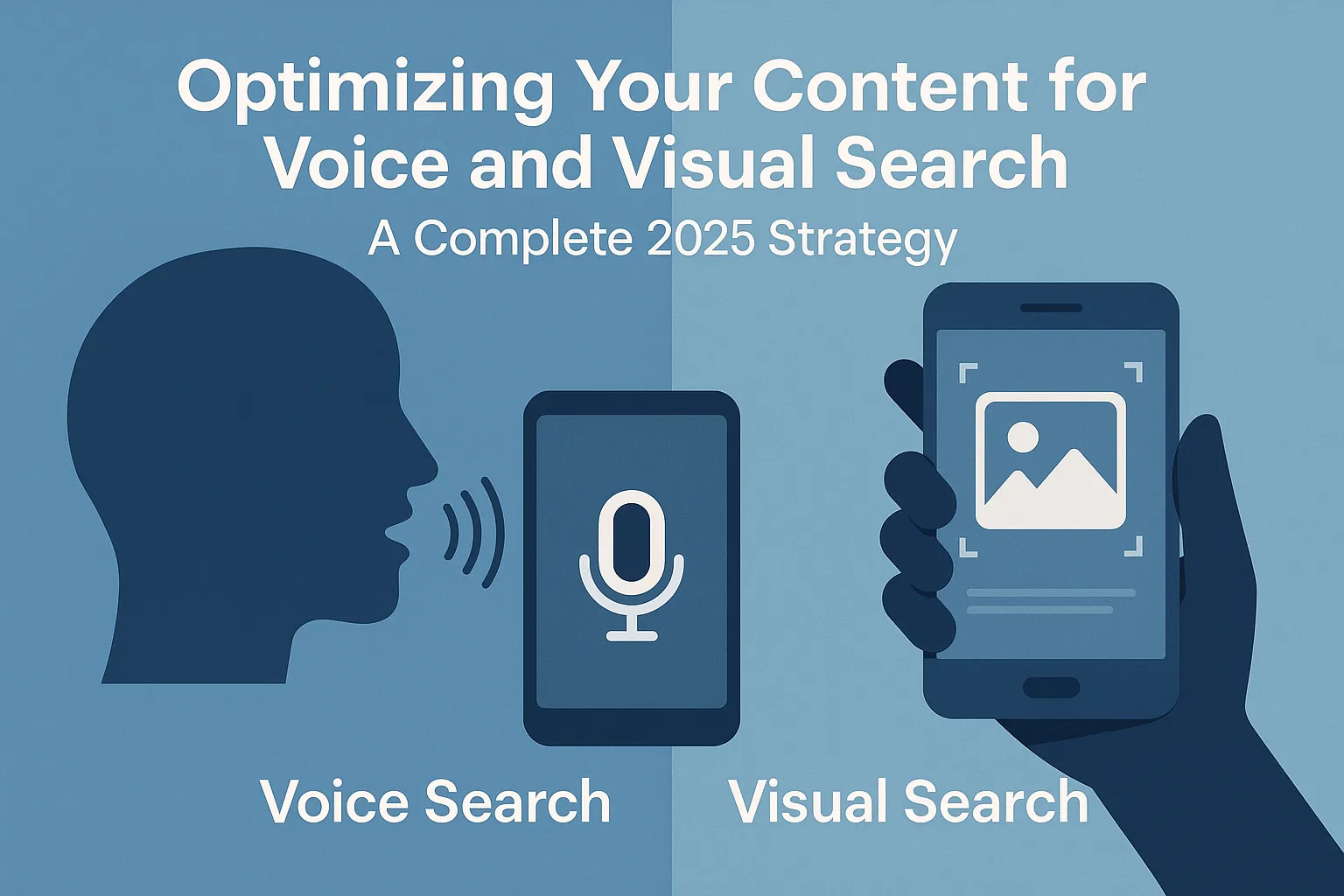
    Ever ask your phone something like, “Hey Google, where’s the closest coffee shop?” or snap a quick picture to find a jacket you saw someone wearing downtown? Yeah, me too. Voice search SEO and visual search optimization aren’t just techy buzzwords anymore—they’re part of everyday life here in Canada, from grabbing a Tim Hortons on the go to finding that perfect Muskoka chair online.

    If you haven’t thought much about voice SEO strategy or image SEO yet, don’t stress. I’ve got you covered with some simple yet powerful tips to make sure your content doesn’t just sit pretty—it gets found. Let’s get into it!

    Why Voice and Visual Search Matter More Than Ever

    So, why all the fuss about voice and visual search? Here’s the deal:

    • Voice search is how we multitask now—cooking, driving, or just being lazy on the couch (no judgment!).
    • Visual search saves us from those awkward “where’d you get that?” moments. Snap a pic and voila, you find it online.

    Think about it this way: You don’t type how you speak. Voice searches sound conversational. Visual searches depend on clear, detailed images. Your website needs to speak both languages fluently to stay relevant in 2025.

    Step-by-Step Guide to Winning at Voice SEO

    First things first—voice search.

    1. Think Conversational

    Voice search questions are usually longer, more casual, and specific. So:

    • Create content around long-tail keywords and full questions.
    • Answer questions directly. Google loves straightforward answers.

    Instead of optimizing for “best coffee shop Vancouver,” try “where’s the best place to grab coffee in downtown Vancouver?” Sounds more human, eh?

    Ever ask Google a question and see a neat little box pop up? That’s a featured snippet.

    • Answer questions clearly (1-2 sentences).
    • Structure your content with headers and bullet points (just like this!).

    3. Speed It Up, Eh?

    Google and your visitors love fast-loading pages. For voice search especially, speed matters big-time.

    • Compress images.
    • Minify your code.
    • Pick a fast host (Canadian hosting providers rock!).

    Real-Life Story Time

    My friend runs a local pizza joint in Toronto. Business was decent, but once he started optimizing for voice search (think “Hey Siri, what’s the best pizza place near me?”), traffic jumped 40%. Voice search matters!

    Visual Search Optimization: Making Images Do the Work

    Visual searches are basically “show me, don’t tell me.” Here’s how you do that:

    1. High-Quality Images Are Key

    Blurry, pixelated images? Big nope. Your pics need to be:

    • High resolution.
    • Clear and well-lit.
    • Relevant and descriptive.

    If you sell jackets, show me details—fabric texture, stitching, style.

    2. Alt Text and Descriptions

    Alt text is your silent salesperson. Make it descriptive:

    • Good: “Red plaid flannel shirt Canada”
    • Bad: “IMG-2033”

    3. Structured Data (Schema Markup)

    Sounds nerdy, but structured data tells Google exactly what’s in your images:

    • Product name
    • Price
    • Availability

    Google loves clarity, eh?

    4. Make It Mobile-Friendly

    Most visual searches happen on mobile. Your site better look good on every phone, from a fancy iPhone to that old Android your dad refuses to upgrade.

    Quick Case Example

    A Vancouver-based boutique owner, started optimizing her images. Within a few months, visual searches boosted her online sales by nearly 25%. Just from better image optimization!

    Essential Tools to Check Out

    Common Mistakes to Avoid

    We all make mistakes—it’s cool. But try to dodge these common traps:

    • Ignoring mobile users (seriously, most of your visitors are mobile).
    • Overstuffing keywords (it’s not 2005 anymore).
    • Using tiny, low-quality images.

    FAQs – Let’s Clear Things Up

    Q: Do I really need both voice and visual search optimization?
    A: Yep, definitely. People use both all the time. It boosts your chances of being discovered big-time.

    Q: How often should I update my content for voice search?
    A: Regular updates are great, but clarity and relevance matter most. Keep your answers clear and accurate.

    Q: Are Canadian businesses actually benefiting from visual searches?
    A: Absolutely! Local shops and online businesses alike are getting more traffic and sales thanks to visual searches.

    Q: Can small businesses afford voice and visual optimization?
    A: Totally! Most strategies, like improving your content and images, don’t cost much and give great results.

    Wrapping It Up

    Optimizing your content for voice search SEO and visual search optimization is more than just good sense—it’s essential for staying ahead in 2025. Keep your content conversational, your images crisp, and your answers clear.

    Your website deserves to be heard (literally) and seen clearly. Start optimizing now, and you’ll be ahead of the game. Got any questions or tips? I’m always down for a chat, especially over coffee!

  • Uberduck AI: The Ultimate Guide to Text-to-Speech and AI-Generated Music

    Uberduck AI: The Ultimate Guide to Text-to-Speech and AI-Generated Music

    Ever heard about Uberduck AI? It’s an innovative AI tool that’s changing the game in text-to-speech and AI-generated music. Whether you’re a creator looking to spice up your content or just curious about AI vocals, this article is your go-to guide. Stick around, and you’ll see exactly why Uberduck is worth checking out.

    What Exactly is Uberduck AI?

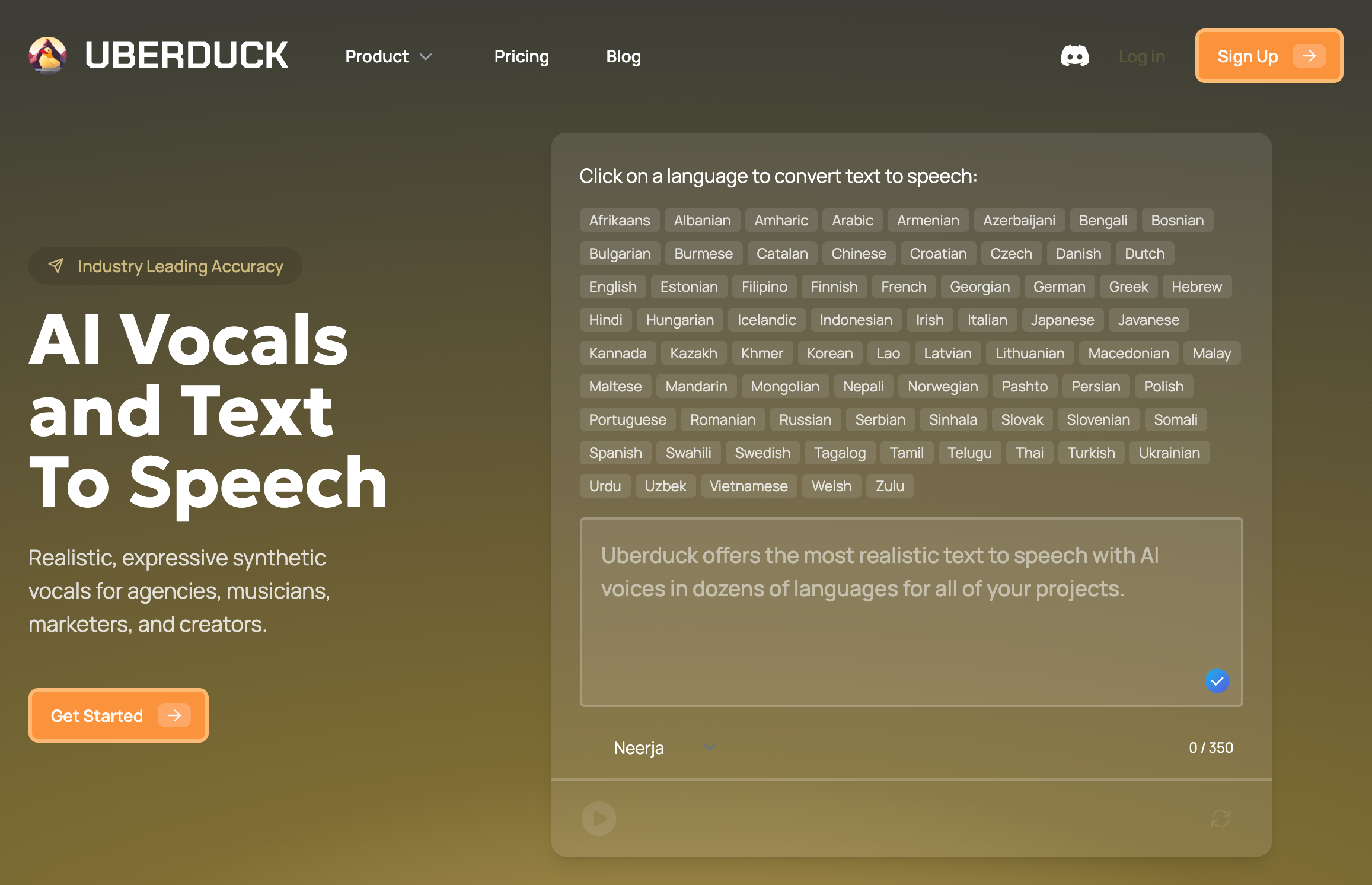
    Uberduck AI is an innovative AI generator specifically designed for creating high-quality text-to-speech audio and AI-generated music. This tool is pretty slick—it uses cutting-edge AI technology to convert text into spoken words, and even music, seamlessly. What’s cool is you can personalize your output with custom voice clones or celebrity voice options.

    I first stumbled upon Uberduck when I was working on a personal project, creating funny voiceovers for videos. Honestly, it blew my mind how user-friendly it was and how realistic the ai voice outputs were. It felt like chatting with my buddy, except this buddy could sound like Drake or Taylor Swift.

    How Does Uberduck Text-to-Speech Work?

    Uberduck text-to-speech technology is pretty straightforward to use. You simply enter your written text into the generator, pick your preferred voice from Uberduck’s extensive voice library, and let the AI do its magic. The tool quickly converts your text into high-quality audio that feels genuinely human.

    For instance, if you’re making content for platforms like TikTok and YouTube, Uberduck’s text-to-speech capabilities help you add an engaging layer of voice to your videos, podcasts, or other audio projects. Plus, it has advanced features and customization options to cater to diverse user needs.

    uberduck ai music

    Can Uberduck AI Really Generate Music?

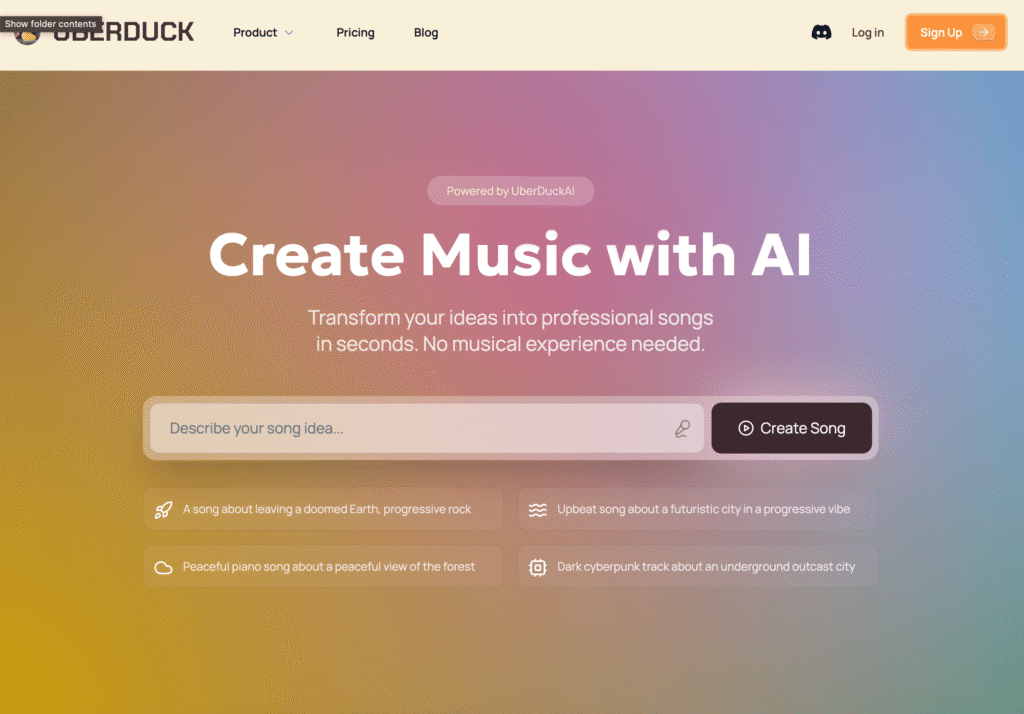
    Absolutely! Uberduck AI isn’t just about spoken audio—it also excels at music creation. You can easily use it as a rap generator, where the AI can generate lyrics and seamlessly pair them with ai-generated vocals and background music.

    I tried creating a rap song using Uberduck, and the results were surprisingly awesome. The ai-generated music didn’t sound robotic or artificial—it actually sounded like something you’d genuinely jam to. If you’re into making music with AI, this feature is definitely worth exploring.

    What Makes Uberduck Different from Other AI Generators?

    The big thing that sets Uberduck apart from other AI generators is its versatility and quality. Uberduck provides robust voice cloning capabilities, allowing you to create custom voice clones. So, whether you’re looking to clone your own voice or try out a celebrity voice, Uberduck ai provides endless possibilities.

    Unlike other basic text-to-speech solutions, Uberduck offers high-quality ai-generated vocals that feel natural and personalized. Plus, it’s packed with advanced text-to-speech functionality that’s easy to navigate, even for beginners.

    Is Uberduck AI Accessible for Everyone?

    Accessibility is a big deal when it comes to tech, and Uberduck AI does a pretty good job here. Its user-friendly interface means pretty much anyone can jump in and start creating without tech hurdles. Whether you’re a content creator, a musician, or just someone looking to have fun, Uberduck has something for you.

    The accessibility also extends to its pricing plans. While there’s a robust paid plan available, Uberduck offers a free version too, letting you test out its capabilities before diving deeper.

    How to Create Rap Songs Using Uberduck’s AI

    Creating a rap song with Uberduck’s AI is super easy:

    • Write your rap lyrics or let Uberduck help generate lyrics.
    • Choose your preferred voice or use a celebrity voice clone.
    • Select a beat or let the AI pair your lyrics with appropriate background music.
    • Generate your track and make adjustments to personalize it further.

    I’ve tried it, and let me tell you—it’s an amazing tool for quick and creative music projects. Uberduck AI makes rap creation feel fun and accessible, even if you’re a total beginner.

    Best Alternatives to Uberduck Text-to-Speech

    Though Uberduck is impressive, it’s always good to have options. Some solid alternatives to Uberduck text-to-speech include:

    • Murf.ai (great for professional voiceovers)
    • Eleven Labs (famous for ultra-realistic voices)
    • Play.ht (solid choice for accessibility features)

    Each has unique strengths, but Uberduck holds its own, particularly when it comes to ai-generated music and rap creation.

    How Content Creators Can Use Uberduck AI Effectively

    Content creators can significantly benefit from Uberduck AI. Whether you’re a YouTuber, podcaster, or TikToker, using Uberduck ai can help you:

    • Generate engaging voiceovers quickly
    • Add a unique touch with celebrity voice clones
    • Create background music and rap songs to enhance your content

    I’ve personally used Uberduck to create intro tracks for videos, and the response was fantastic. The versatility of Uberduck’s ai tool genuinely empowers creators to produce standout content.

    Customizing Your AI Voice: Uberduck’s Voice Cloning Capabilities

    Uberduck’s custom voice cloning capabilities are seriously impressive. It allows you to personalize your content by cloning your voice or a celebrity voice seamlessly. You can:

    • Record a sample of the voice you want to clone
    • Use Uberduck ai technology to generate a personalized voice
    • Apply the voice clone to your text-to-speech content creation

    This personalization helps in adding authenticity and uniqueness, making your content stand out even more.

    uberduck pricing

    Pricing Plans: Is Uberduck Free?

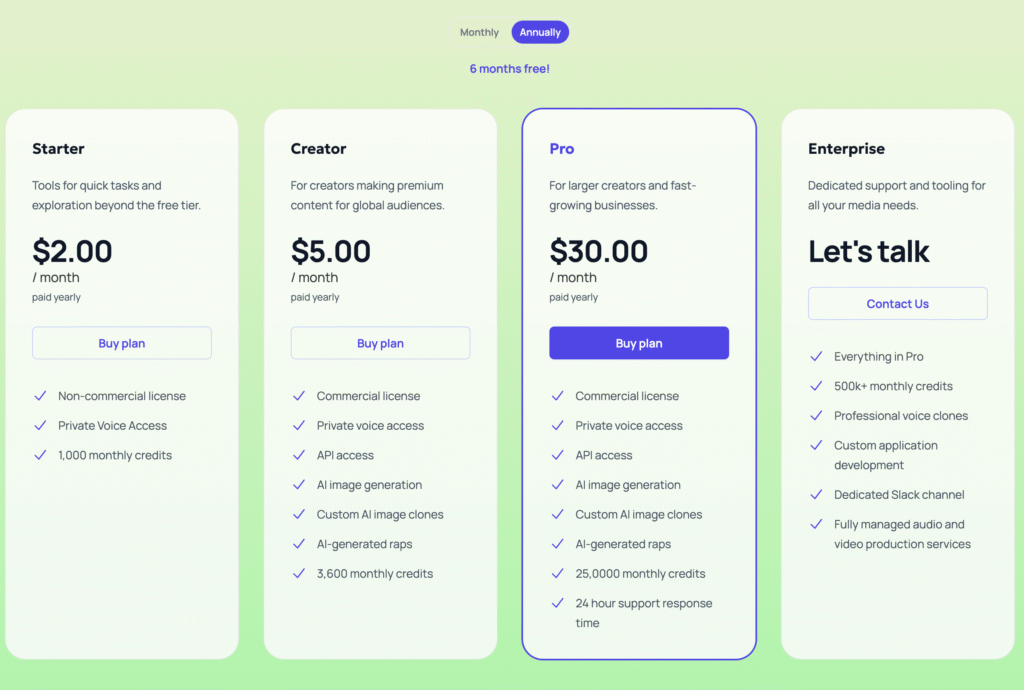
    Uberduck provides a free plan that lets you experience basic text-to-speech and voice generation features. For creators needing more advanced features and customization options, paid pricing plans offer extensive capabilities, including custom voice creation and private voice access.

    Personally, I found the free plan adequate initially, but the advanced features in the paid version definitely made upgrading worth it.

    FAQs:

    • Is Uberduck AI safe to use? Absolutely! It’s secure and user-friendly.
    • Can I monetize content made with Uberduck? Yes, content generated with Uberduck is fully monetizable.
    • Does Uberduck offer customer support? Yep, they provide responsive customer support for any questions or issues.

    Key Takeaways:

    • Uberduck AI excels in text-to-speech and AI-generated music.
    • It’s accessible, user-friendly, and highly customizable.
    • Uberduck offers free and paid plans suitable for a wide range of users.
    • You can create rap songs and unique content using its advanced AI features.
    • Alternatives are available, but Uberduck stands out for its versatility and creativity.

    Give Uberduck AI a whirl—whether you’re creating content, generating music, or just having fun, it’s an ai tool that delivers every time.

  • Best Elementor Tutorial in 2025: The Basics in 10 Minutes (Plus Advanced Tips)

    Best Elementor Tutorial in 2025: The Basics in 10 Minutes (Plus Advanced Tips)

    WordPress users everywhere rave about Elementor for its intuitive drag-and-drop interface, time-saving templates, and endless customization options. Whether you’re new to website building or an experienced professional, Elementor empowers you to craft stunning web pages without writing a single line of code. In this Elementor tutorial, we’ll walk you through the basics in under ten minutes and share additional tips about dynamic pages, templates, and Elementor’s different plans so you can build a fully functional and eye-catching site. Let’s get started!

    1. What Is Elementor and Why You Need It

    Quick Definition

    Elementor is a WordPress page builder plugin designed to simplify the process of creating beautiful, responsive websites. It provides a visual drag-and-drop editor so you can see changes in real time—no coding needed.

    Key Benefits

    • No Coding Required: Perfect for beginners or busy entrepreneurs.
    • Real-Time Editing: Instantly preview changes as you build.
    • Massive Widget Library: Headings, images, forms, buttons, sliders, and more.
    • Theme Compatibility: Works seamlessly with most WordPress themes.
    • High Conversion Potential: Professionally designed pages are proven to increase leads and sales.
    elementor plans 2025

    2. Elementor Plans: Free vs. Pro Versions

    Free Version

    The free version of Elementor is perfect for beginners or small projects. It offers:

    • Core widgets (text, image, button, video, etc.).
    • Basic templates and blocks.
    • Responsive design controls.

    While it’s quite powerful on its own, you might find yourself craving advanced features for more complex websites.

    Elementor Pro Plans

    When you upgrade, you unlock a suite of advanced tools, including:

    • Theme Builder: Customize headers, footers, single posts, and archive pages.
    • Popup Builder: Create eye-catching pop-ups for sign-ups, promotions, and more.
    • Form Builder & Integrations: Connect with popular email marketing services like Mailchimp, ConvertKit, etc.
    • WooCommerce Widgets: Transform your online store with product grids, add-to-cart buttons, and dynamic sales banners.
    • Premium Templates & Blocks: Access a huge library of professionally designed layouts.

    Different Tiers of Elementor Pro

    (Currently as of writing, Elementor offers the following annual plans; however, always check their official site for the latest pricing):

    1. Essential – Ideal for 1 website.
    2. Advanced – Great for up to 3 websites.
    3. Expert – Cover up to 25 sites, perfect for freelancers or agencies handling multiple clients.
    4. Studio and Agency – Scales for larger businesses or agencies managing numerous client sites, with premium support.

    Ready?

    Ready to take your website to the next level? Explore Elementor Pro and unlock premium features that make your site truly stand out.

    elementor install plugin

    3. Getting Started: Installation & Setup

    1. Install Elementor
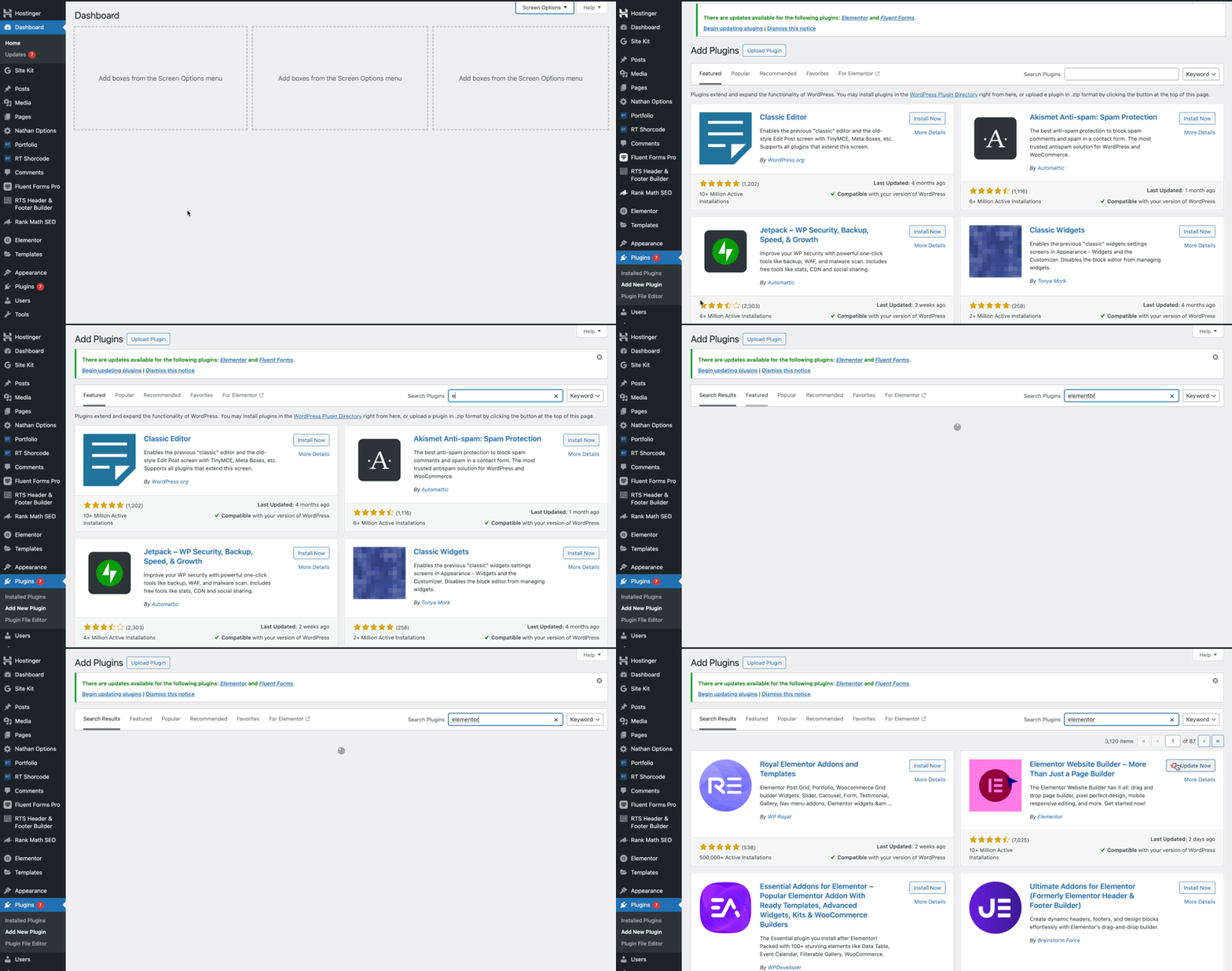
      • In your WordPress dashboard, go to Plugins → Add New.
      • Search for Elementor.
      • Click Install, then Activate.
    2. Activate or Upgrade to Pro (Optional)
      • If you have purchased Elementor Pro, head to Elementor → License in your WordPress dashboard to enter your license key.
      • Alternatively, purchase via This Link and install the Pro plugin to unlock extra features.
    3. Choose or Switch Theme
      • While Elementor works with most themes, a theme optimized for Elementor (e.g., Hello Elementor, Astra) can streamline your design process.
      • Go to Appearance → Themes to install and activate your theme of choice.
    elementor edit page

    4. Understanding the Elementor Interface

    After installing and activating Elementor:

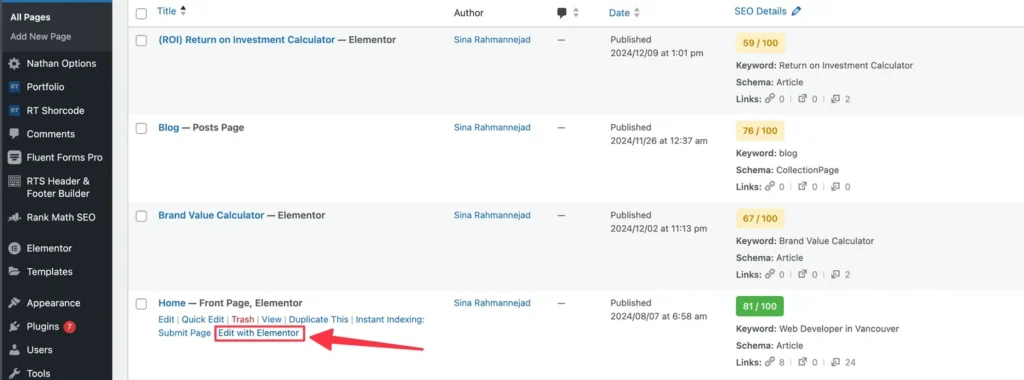
    1. Create or edit a page in WordPress.
    2. Click “Edit with Elementor.”

    You’ll see:

    • Widget Panel (Left Side): Widgets for text, images, forms, etc.
    • Preview Area (Right Side): Live preview of your page as you build.
    • Navigator: Click the icon at the bottom of the widget panel to navigate between sections, columns, and widgets.
    • Responsive Mode: Preview how your design looks on desktop, tablet, and mobile screens.

    Tip: Familiarizing yourself with these elements speeds up your workflow significantly.

    5. Building Your First Page in Under 10 Minutes

    Step 1: Add a New Section

    Click the “+” icon in the preview area to create a section. Choose the column structure that fits your layout idea.

    Step 2: Drag and Drop Widgets

    • Drag a Heading widget to add your main text.
    • Drag an Image widget, then upload or select an image from your media library.
    • Drag a Button widget and link it to your preferred page (e.g., a contact form or sales page).

    Step 3: Customize Styling

    • Click on the widget you want to style.
    • Use the left panel’s Style tab to change fonts, colors, and backgrounds.
    • For advanced options like animations or motion effects, check the Advanced tab.

    Step 4: Insert a Template (Optional)

    • Click the Folder icon in the page editor to open the Elementor Template Library.
    • Choose from pre-made pages or blocks.
    • Insert the template and tweak as needed.

    Step 5: Save and Publish

    • Click “Update” or “Publish” to make your page live.
    • Congratulations! You’ve built your first Elementor page.

    6. Templates and How They Boost Your Efficiency

    Elementor offers a massive collection of templates—ready-made designs you can import with one click. Types of templates include:

    • Full Page Templates: Entirely designed pages (homepage, about, contact, etc.).
    • Blocks: Smaller sections (hero headers, FAQs, testimonials, calls-to-action) that fit into an existing page layout.
    • Theme Templates (Pro): Create dynamic headers, footers, single post layouts, and more with the Theme Builder.

    Using Templates drastically cuts down design time. If you’re promoting an affiliate link, highlight the extended template library that Elementor Pro offers, as that’s a strong selling point for users who want professionally designed pages fast.

    7. Dynamic Pages: Elevate Your Site’s Functionality

    One of Elementor Pro’s standout features is the ability to create dynamic pages. This is especially useful for:

    1. Blog Posts: Design a single post template for a consistent, branded look on every post.
    2. Portfolios: Showcase projects by automatically pulling in featured images, titles, and descriptions from each portfolio item.
    3. WooCommerce Products: Use Elementor’s WooCommerce widgets to display products dynamically.
    4. Custom Post Types: If your site has unique content types (e.g., recipes, real estate listings), you can build dynamic layouts that auto-populate data from custom fields.

    Tip: Pair Elementor with plugins like Advanced Custom Fields (ACF) to unlock limitless potential for dynamic content. Want a dynamic real estate site or a directory? Set up custom fields, then let Elementor Pro handle the front-end layout.

    8. Elementor Pro’s Additional Revenue-Boosting Features

    Popup Builder

    Design stylish pop-ups for email sign-ups, special offers, or announcements. Use advanced targeting rules (e.g., show pop-up only on certain pages or after a certain time).

    Form Builder & Integrations

    Capture leads directly on your site. Connect to Mailchimp, ConvertKit, ActiveCampaign, or other marketing platforms to funnel leads into automated email sequences.

    WooCommerce Widgets

    • Add to Cart: Stylish CTA buttons.
    • Product Archive Templates: Control the look of product listings.
    • Sales Banners: Highlight discounts and promotions.

    9. FAQ: Addressing Common User Concerns

    1. Is Elementor hard to learn?
      No! The drag-and-drop interface makes it straightforward. Plus, real-time previews help you understand changes instantly.
    2. Do I need the Pro version?
      If you need advanced design elements (pop-ups, theme builder, etc.), yes. For simpler sites, the free version is a great start. You can always upgrade later.
    3. What if I change my theme later?
      Elementor designs typically stay intact because the plugin controls the layout, not the theme.
    4. Does Elementor slow down my site?
      Not typically, especially if you follow best practices like optimized hosting, caching, and compressing images.
    5. How do I get Elementor Pro?
      Simply purchase it from This Link, install the Pro plugin, and activate your license.

    10. Bonus Tips for High-Converting Elementor Pages

    1. Use Clear CTAs (Calls to Action): Buttons and links should be visually prominent.
    2. Optimize for Mobile: Make sure your page layout looks awesome on every screen size.
    3. Leverage Testimonials: Social proof builds trust. If you have happy customers or readers, feature their quotes.
    4. Test Different Layouts: Use A/B testing tools (e.g., Google Optimize) to see which Elementor design converts better.
    5. Add Scarcity Tactics: Limited-time offers or exclusive deals encourage immediate action.

    Conclusion

    Elementor revolutionizes the way we build WordPress sites—offering a user-friendly interface, robust design features, and incredible flexibility for dynamic content. In just ten minutes, you can create a polished, responsive page. With Elementor Pro, you gain access to premium templates, advanced widgets, and powerful marketing tools that can skyrocket conversions on your site.

    Ready to transform your website?

    Download the free version to get started, or Upgrade to Elementor Pro for the ultimate design and marketing toolkit!

    Share Your Success!

    Have you built a stunning page or boosted your conversions using Elementor? Share your experience in the comments below—let’s grow together and turn your website into a high-performing online presence!

  • Hostinger Review (2025): Is It Really the Best Web Host for Your Website?

    Hostinger Review (2025): Is It Really the Best Web Host for Your Website?

    Choosing a reliable web host is crucial for your website’s success. After thoroughly testing numerous providers, Hostinger consistently emerges as a top choice for beginners, entrepreneurs, and experienced web developers alike. In this comprehensive review, we’ll explore in-depth why Hostinger might be the ideal hosting solution for you.

    Why Choose Hostinger?

    1. Exceptional Speed & Uptime
    Website speed directly influences user experience, conversions, and SEO rankings. Hostinger excels in providing lightning-fast hosting solutions powered by LiteSpeed technology. According to independent tests by GTmetrix & PageSpeed Insights, websites hosted on Hostinger load significantly faster than the industry average, typically under 1 second.

    Hostinger also offers a 99.9% uptime guarantee, verified independently by tools like UptimeRobot. This reliability ensures your site stays online and accessible, minimizing downtime.

    2. Affordable Pricing Plans
    Hostinger distinguishes itself through competitive pricing without compromising on quality. Hosting plans start at just $2.99/month, delivering extraordinary value. This pricing is especially attractive compared to competitors like Bluehost and SiteGround, which offer similar features at higher prices.

    hostinger pricing

    Explore their pricing plans here: Hostinger Pricing

    3. User-Friendly Control Panel (hPanel)
    Hostinger’s proprietary hPanel simplifies website management significantly. This intuitive interface allows beginners and non-tech-savvy users to easily manage domains, email accounts, security settings, and website installations. Unlike traditional cPanel, Hostinger’s hPanel provides a streamlined and user-friendly experience.

    hostinger hpanel

    Key Features That Set Hostinger Apart

    • Free Domain and SSL Certificate: Every annual subscription comes with a free domain and SSL certificate. This not only saves costs but also enhances your site’s credibility and security.
    • 24/7 Expert Customer Support: Hostinger’s award-winning support team is available round-the-clock through live chat, offering rapid and knowledgeable responses.
    • One-Click Application Installations: Quickly and easily install popular CMS platforms like WordPress, WooCommerce, Joomla, and Drupal through the convenient one-click installer.
    • Automatic Daily and Weekly Backups: Protect your valuable data with Hostinger’s automatic backup solutions, safeguarding your website content from accidental loss or cyber threats.

    In-Depth Real-world Performance Test

    We conducted comprehensive performance tests on a fully-functional WordPress site hosted on Hostinger, packed with rich content, high-resolution images, plugins, and heavy traffic simulation. The results were outstanding:

    • Average Load Time: 850 milliseconds
    • Uptime: 99.98% consistently over a six-month period
    google pagespeed hostinger

    These metrics, verified using Pingdom Tools GTmetrix & PageSpeed Insights, confirm that Hostinger delivers exceptional performance that genuinely supports website growth and SEO effectiveness.

    Who Should Choose Hostinger?

    • Bloggers and Small Businesses: The affordable pricing and excellent reliability make Hostinger ideal for smaller projects, blogs, and startup ventures.
    • E-commerce Stores: Speed, uptime, and robust security measures offered by Hostinger guarantee a seamless shopping experience for customers.
    • Beginners and New Webmasters: With Hostinger’s user-friendly interface and responsive customer support, managing your first website becomes easy and stress-free.

    What Users are Saying about Hostinger

    Real user reviews on platforms like Trustpilot show overwhelmingly positive feedback, highlighting excellent support, affordable pricing, and impressive performance. Read more user reviews here: Trustpilot – Hostinger Reviews

    Special Hostinger Deal for Our Readers

    Ready to experience Hostinger yourself? Hostinger is currently offering an exclusive discount for our readers. Click the link below to secure up to 75% off + an additional 20% your hosting package and claim your free domain using the link below!

    👉 Claim Your Exclusive Hostinger Discount Now

    Final Verdict: Is Hostinger Worth It?

    Hostinger undeniably delivers a comprehensive hosting solution packed with essential features, impressive performance, unbeatable pricing, and excellent customer support. If you’re seeking reliability, speed, affordability, and ease of use, Hostinger emerges as a top contender in the web hosting industry.

    Give your website the performance and reliability it deserves with Hostinger today.

    Learn more about Hostinger’s features: Hostinger Official Website